
Sceptre 24-inch Prime Monitor
4.6Editor score
99% sRGB Color Gamut
Built-in Speakers Included
100Hz Refresh Rate
Finding the right HDMI LED monitor can transform your workspace or gaming setup significantly. These displays offer crisp visuals and reliable connectivity for all your devices. Whether you need sharp text for documents or smooth motion for games, the right panel matters.
We evaluated ten standout models based on refresh rates, color accuracy, and connectivity options. Our analysis focuses on real-world performance metrics that matter to daily users. You will see how each screen handles various tasks from office work to immersive entertainment experiences.
Each pick highlights specific strengths like eye care technology or versatile ports. Note that prices and availability may change frequently on retailer sites. Always check current listings before purchasing to ensure you get the best deal available for your needs.
4.6Editor score

4.7Editor score

4.6Editor score
As an Amazon Associate we earn from qualifying purchases.
This side-by-side comparison outlines key specifications for each model to help you decide quickly. Look at resolution, refresh rates, and special features like eye care tech or speakers. These details highlight the unique strengths of every display on our list.




The Sceptre 24-inch Prime Monitor stands out as an incredible value option for budget-conscious buyers. It delivers a sharp Full HD image with a high refresh rate suitable for casual gaming and everyday tasks. The built-in speakers add convenience for users who want a cleaner desk setup without external hardware.
We may earn a commission when you buy through this link, at no additional cost to you.
Its 99% sRGB coverage ensures colors look vibrant and true to life for media consumption. The 100Hz refresh rate makes motion smoother than standard 60Hz panels, reducing blur during fast scrolling or gaming. Two HDMI ports allow you to connect a laptop and console simultaneously without swapping cables often.
While the stand only tilts and lacks height adjustment, this is expected at this price range. The blue light shift helps reduce eye strain during long work sessions, which is a thoughtful touch. Overall it balances performance and cost better than most competitors in this category.
Choose this monitor if you need a reliable screen for school home office or light gaming. It offers essential features without unnecessary extras that drive up the cost. Just ensure your desk has enough space since the base is somewhat wide compared to ultra-slim models.
The 100Hz refresh rate provides noticeably smoother visuals compared to standard displays, making it great for casual gaming sessions.
Built-in speakers eliminate the need for external audio devices, keeping your workspace tidy and organized efficiently.
We may earn a commission when you buy through this link, at no additional cost to you.
The Sceptre E275W-19203R offers a larger 27 inch canvas for those needing more screen real estate. It maintains a solid Full HD resolution that looks crisp on this bigger panel size. Like its smaller sibling it includes built-in speakers which is a rare find in this price bracket.
We may earn a commission when you buy through this link, at no additional cost to you.
With 99% sRGB coverage colors remain vivid for photo viewing and video streaming. The 75Hz refresh rate is a step up from basic 60Hz models providing slightly smoother scrolling. HDMI and VGA ports ensure compatibility with older devices and modern laptops alike.
The main trade-off is the lower refresh rate compared to gaming focused models. Adjustments are limited to tilt which may not suit all ergonomic needs. However for general use it offers a spacious view without breaking the bank for students or home workers.
This monitor works well for multitasking with multiple windows open side by side. The larger screen helps reduce the need for dual displays in some setups. If you prioritize screen size over high speed motion this is a solid affordable choice.
The 27 inch screen provides ample space for multitasking without needing a second display for productivity.
Built-in speakers allow for audio playback without cluttering the desk with extra hardware devices.
We may earn a commission when you buy through this link, at no additional cost to you.
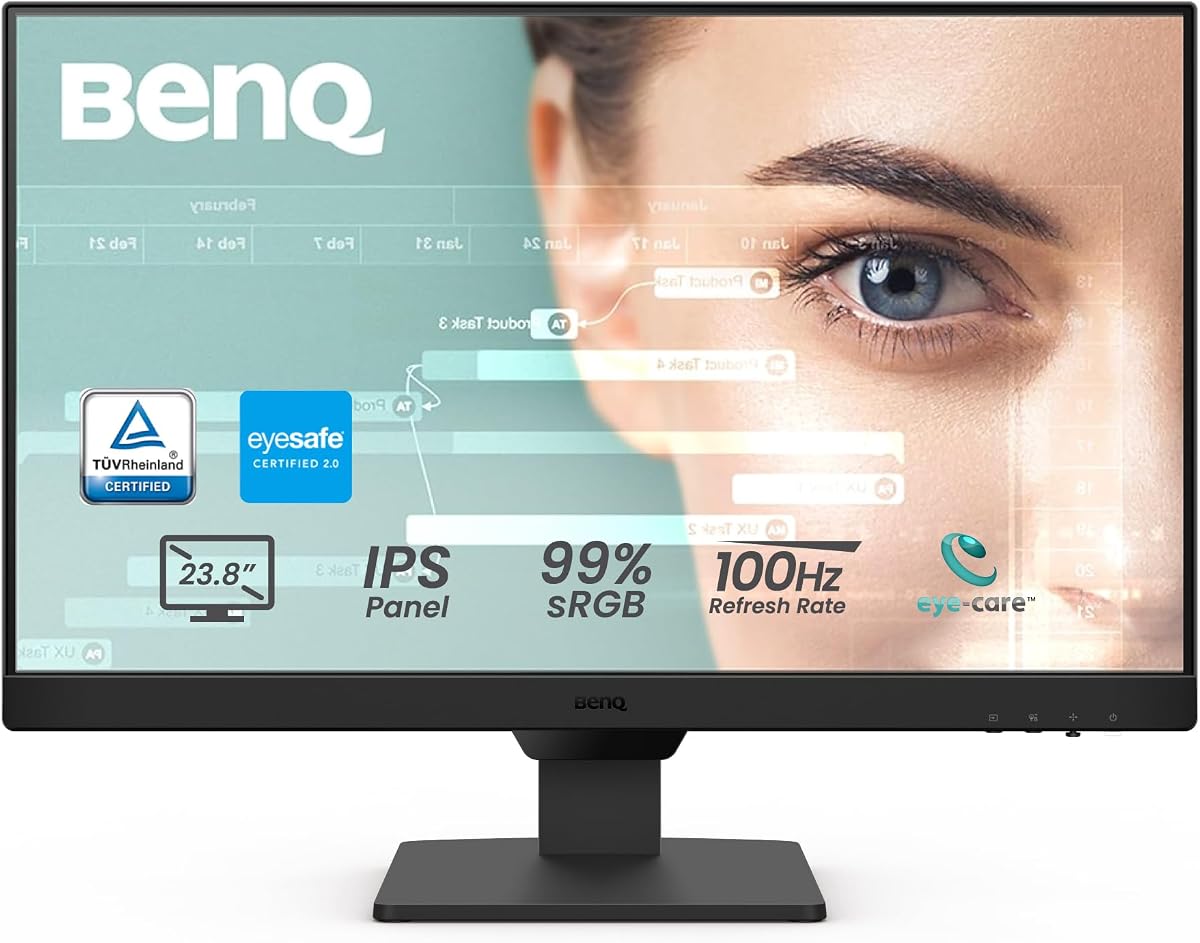
The BenQ GW2490 excels with its dedicated eye care technologies designed for long usage hours. It combines a 100Hz refresh rate with Low Blue Light Plus filtering to reduce eye strain. This makes it ideal for professionals who spend all day staring at a screen.
We may earn a commission when you buy through this link, at no additional cost to you.
The IPS panel ensures consistent colors across wide viewing angles which is great for collaborative work. Adaptive brightness adjusts the screen based on ambient light to keep comfort levels steady. Thin bezels make it look modern and help when using multiple monitors together.
While the stand only tilts, the VESA mount option lets you install it on an arm for full movement. The input hotkey allows quick switching between devices without digging into menus. It balances eye comfort with solid performance metrics effectively.
Choose this if eye health is a priority for your daily workflow. It protects vision without sacrificing visual quality or refresh speed. Ensure you have a VESA mount available if you need height adjustment beyond what the base offers.
Low Blue Light Plus filters harmful radiation while maintaining color vibrancy for comfortable extended viewing.
Input hotkey lets you switch between HDMI and DisplayPort devices with a single click easily.
We may earn a commission when you buy through this link, at no additional cost to you.
The Dell 24 Monitor SE2426H is a top pick because it blends gaming speed with work reliability. A 144Hz refresh rate ensures fluid motion which is rare at this price point. It features AMD FreeSync to match your graphics card reducing screen tearing during games.
We may earn a commission when you buy through this link, at no additional cost to you.
The IPS panel delivers consistent color accuracy that works well for design tasks too. TUV Rheinland eye comfort certification means it filters blue light without washing out images. Ultra-thin bezels give a modern look that fits any office aesthetic perfectly.
The stand only tilts which limits positioning options for some users. You will not find USB ports for peripheral connectivity which is common in budget models. However the core display performance is excellent for both productivity and play.
This is the best all-around choice for most home office users wanting speed. It handles gaming well enough without needing a specialized gaming monitor. Just be aware of stand limitations if you require full ergonomic customization.
The 144Hz refresh rate ensures smooth motion that makes gaming and scrolling feel incredibly responsive.
TUV Rheinland 3-star certification reduces blue light to help you work longer without eye fatigue.
We may earn a commission when you buy through this link, at no additional cost to you.
The Philips 241V8LB excels with its VA panel which offers deep blacks and high contrast. This makes movies and dark scenes look richer compared to standard IPS panels. It also supports a 100Hz refresh rate for smooth motion which is great for casual gaming.
We may earn a commission when you buy through this link, at no additional cost to you.
The bezel-free design helps when using dual monitors as gaps between screens disappear. EasyRead mode simulates paper to make text easier on eyes during document review. Flicker free tech reduces flicker that causes headaches during long work periods.
Viewing angles are narrower on VA panels so colors shift if viewed from the side. The stand is basic and only tilts without height adjustment. However for a single monitor setup this contrast advantage is very noticeable in media consumption.
Choose this if you watch lots of videos or work in dim environments. The contrast ratio brings out detail that other screens might miss. Ensure you sit directly in front for the best visual experience possible.
VA panel technology produces brighter whites and deeper blacks for a more impactful viewing experience.
EasyRead mode adjusts the display to resemble paper reducing strain during long document reading sessions.
We may earn a commission when you buy through this link, at no additional cost to you.
The Dell P2425H is a premium choice focused on ergonomic flexibility and build quality. It offers full height tilt swivel and pivot adjustments for perfect positioning. This level of control helps reduce neck strain for professional environments with strict setup needs.
We may earn a commission when you buy through this link, at no additional cost to you.
The 1500:1 contrast ratio provides better depth than many standard panels. Dell is known for reliability making this a safe bet for long term use. It supports standard Full HD resolution which is sufficient for most office applications today.
It comes at a higher price which reflects the premium stand features and durability. The refresh rate is standard so it is not ideal for fast competitive gaming. However for workstations where comfort is key it is a top tier option.
Select this if you need full adjustability to accommodate different users daily. The build quality ensures it lasts longer than many budget options. It is ideal for office environments where health and comfort are prioritized over gaming speed.
Height tilt swivel and pivot adjustments let you position the screen for perfect ergonomic alignment.
Dell is known for reliability making this a safe bet for long term use in offices.
We may earn a commission when you buy through this link, at no additional cost to you.
The BenQ BL2490 receives top user marks for its effective anti-glare coating. This feature cuts down reflections in bright rooms making it easy to see content. It also offers a 100Hz refresh rate which provides smooth motion for general tasks.
We may earn a commission when you buy through this link, at no additional cost to you.
The 250 cd/m² brightness ensures images remain clear even under strong lighting. HDMI and DisplayPort inputs give flexibility for connecting different devices easily. It is a no-fuss monitor that does what it says with simple style.
While the stand is basic the screen quality matches the high user rating. Color accuracy is good enough for general work but not for pro editing. It is perfect for environments with windows or overhead lights causing glare issues.
Choose this if you need a reliable display that handles bright rooms well. The high rating from users suggests consistent quality across units. Just ensure your needs do not require advanced color calibration for pro work.
The anti-glare coating cuts down reflections in bright rooms making it easy to see content clearly.
A near perfect rating score from users suggests consistent quality across units and reliable performance.
We may earn a commission when you buy through this link, at no additional cost to you.
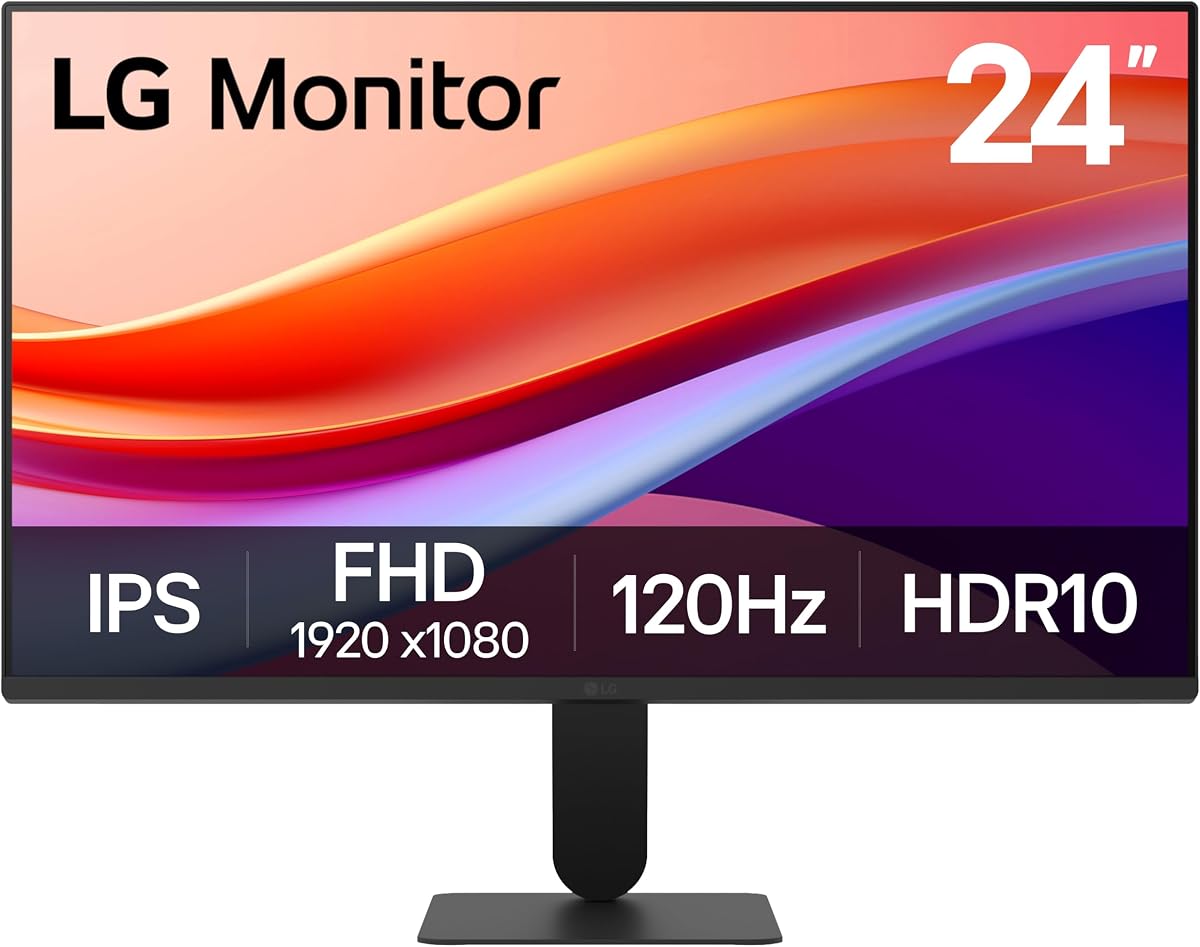
The LG 24U411A-B stands out with its 120Hz refresh rate and motion blur reduction tech. This makes it exceptionally smooth for fast paced games and videos. HDR10 support adds vivid color depth that enhances media viewing significantly.
We may earn a commission when you buy through this link, at no additional cost to you.
Dynamic Action Sync reduces input lag ensuring your commands register quickly during games. The slim bezel design gives a modern look that fits clean workspaces well. Reader mode lowers blue light for comfortable long reading sessions.
The stand base is slim but only tilts lacking height adjustment. This might not suit everyone especially if ergonomics are a priority. However the motion performance is top tier in this price range for gamers.
Choose this if smooth visuals are your main priority for gaming. The high refresh rate ensures you stay sharp during competitive play. Ensure your graphics card can support the refresh rate to see the benefits.
120Hz refresh rate and 1ms motion blur reduction keep fast paced gameplay sharp and responsive.
HDR10 support adds vivid color depth that enhances media viewing significantly.
We may earn a commission when you buy through this link, at no additional cost to you.
The Acer KB220Q H2bi is perfect for small desks needing a compact screen. It delivers a 100Hz refresh rate in a 21.5 inch frame which is rare. ZeroFrame design minimizes bezels so the screen looks bigger than it is physically.
We may earn a commission when you buy through this link, at no additional cost to you.
Adaptive Sync ensures smooth visuals when connected to compatible graphics cards. The price is very accessible for budget shoppers or student setups. It handles daily tasks with ease despite its smaller size.
The compact size means less screen real estate for multitasking. Stand options are basic with only tilt adjustment available. However for limited desk space it provides excellent performance without bulk.
Choose this if desk space is tight or you prefer smaller screens. The refresh rate ensures smooth scrolling and gaming despite the size. It is a great choice for dorm rooms or small home offices.
The compact 21.5 inch frame fits easily on small desks while still delivering a refresh rate.
ZeroFrame design minimizes bezels so the screen looks bigger than it is physically.
We may earn a commission when you buy through this link, at no additional cost to you.
The Dell 24 Plus Monitor S2425HSM packs almost every desirable feature in one unit. It has a 144Hz refresh rate high build-in speakers and full stand adjustability. The Ash White color adds a stylish touch for modern office environments.
We may earn a commission when you buy through this link, at no additional cost to you.
Eye comfort certification protects you from blue light during long work periods. The 1ms response time keeps action clear which is great for mixed use. AMD FreeSync ensures smooth visuals when gaming on compatible PCs.
The price is higher due to the rich feature set and premium build. The base is solid and may take up more desk space than slim stands. Yet the combination of ergonomics and performance is unmatched here.
Select this if you want a premium all-in-one solution for home or work. It balances style function and performance better than most rivals. Ensure you have the budget for the extra features included.
This monitor packs 144Hz refresh rate dual speakers and full stand adjustability in one unit.
The Ash White color adds a stylish touch for modern office environments.
We may earn a commission when you buy through this link, at no additional cost to you.
Choosing the right monitor requires balancing performance needs with your budget constraints. Focus on refresh rates for speed and panel type for color accuracy. Consider ergonomic features to ensure comfort during long usage periods.
A higher refresh rate measured in Hertz ensures smoother motion which is critical for gaming. Look for at least 100Hz to reduce blur and make scrolling feel responsive. This feature impacts how fluid your visual experience feels daily.
Prioritize refresh rates if you play games or watch videos regularly. A higher number means faster updates to the screen image for better motion clarity.
Panel types like IPS VA and TN affect color and viewing angles. IPS panels offer great color accuracy and wide angles while VA provides better contrast. TN is faster but has poorer color reproduction for general use.
Pick IPS for color work or VA for movie watching. Ensure the panel matches your main usage priorities for best results.
Full HD 1920×1080 is standard and sufficient for most office tasks. Higher resolutions offer sharper text but require more graphics power. For 24 inch screens Full HD is the sweet spot for clarity.
Stick to Full HD for 24 inch displays unless you need detailed visuals. It balances performance and hardware requirements effectively for general use.
Features like low blue light and flicker free tech reduce eye strain during long work. Many monitors now have certifications that prove these features work effectively. Prioritize these if you spend many hours daily at the screen.
Look for TUV or similar certifications when buying for office work. These features are essential for maintaining health during extended usage.
Ensure the monitor has enough HDMI ports for your devices. DisplayPort is useful for high refresh rates on PCs. VGA is becoming rare but handy for older systems or laptops.
Check port availability before buying to avoid needing extra cables. HDMI is the standard for most modern consoles and laptops today.
A good stand allows height tilt and swivel for comfortable viewing angles. Some monitors support VESA mounting so you can use an arm later. Ergonomics matter more than you think for neck and back health.
Prioritize stands with height adjustment to reduce neck strain. If the stand is limited plan for a VESA mount solution.
Built-in speakers save desk space and reduce cable clutter for basic audio. While not audiophile grade they are great for system sounds or casual media. If you need better sound plan for external speakers or headphones.
Look for models with integrated speakers to simplify your setup. Ensure the volume is loud enough for your room size.
Prices vary widely based on features and brand reputation. Set a realistic budget that includes potential costs for stands or adapters. High quality monitors last longer making the extra investment worthwhile over time.
Determine your budget early to narrow down choices efficiently. Remember that features like refresh rate often drive the price differences.
Connect your devices using HDMI cables ensuring they are seated firmly. Adjust the settings on your computer to match the monitor resolution for clarity. Calibrate brightness levels based on your ambient lighting to reduce eye strain effectively.
Clean the screen with a soft dry cloth avoiding harsh chemicals that damage coatings. Use compressed air to remove dust from vents and prevent overheating over time. Avoid touching the screen with rough materials that could leave scratches.
Update your graphics drivers regularly to maintain smooth performance with high refresh rates. Use sleep mode when away to save energy and extend the display lifespan. Consider a surge protector to shield the device from power spikes during storms.
HDMI is widely used for consoles and TVs while DisplayPort often supports higher refresh rates on PCs. Both are common on monitors but DisplayPort handles high speed data better. Check which port your computer supports before connecting.
Use features like low blue light and adjust brightness to match room lighting. Take breaks every hour using the 20-20-20 rule to rest your eyes. Position the monitor at arm's length and slightly below eye level for better posture.
Yes most modern consoles connect easily via HDMI. Ensure the monitor has the necessary HDMI version for 4K or high refresh gaming. For older consoles check that the monitor supports the correct resolution.
This could be due to an incompatible refresh rate or bad cable. Update your graphics drivers and test with a different HDMI cable. Check if the monitor is set to the correct input source mode.
Most monitors support VESA mounts which are standard for monitor arms. Check the product specs for VESA compatibility like 100mm by 100mm holes. If it lacks a VESA pattern you may need an adapter.
Prioritize high refresh rates and built-in speakers to save on extras. Look for reliable brands with good return policies. Avoid models with very basic stands if you need ergonomic adjustments.
Quality LED monitors often last 5 to 7 years with proper care. Using sleep mode and protecting from power surges extends lifespan. Keep vents clean to prevent overheating that shortens component life.
Yes it provides smoother visuals for gaming and scrolling even in everyday tasks. It reduces motion blur making movement look much cleaner on screen. Even for work it offers a noticeable upgrade over 60Hz panels.
The Dell SE2426H stands out as the top choice with its balance of speed and affordability. For those needing ergonomic help the Dell P2425H offers unmatched adjustability for comfort. The BenQ GW2490 remains a favorite for eye care focused users.
When selecting a monitor consider your primary tasks to prioritize features like refresh rate or eye tech. A good monitor should fit your budget while protecting your eyes long term. Never skip checking stand options before you finalize your purchase.
Always verify current pricing since deals change frequently on retailer sites. Investing in a display that meets your needs ensures better productivity and enjoyment. We hope this guide helps you find the perfect HDMI LED monitor today.