
Acer 4-in-1 USB C Hub
4.2Editor score
4K@60Hz dual output
100W power delivery
Compact design
Compare the top Dual HDMI Monitor Adapter options for 2026 to find the best solution for extending your desktop across multiple screens efficiently.
Finding the right Dual HDMI Monitor Adapter is essential for boosting productivity and expanding your digital workspace. Whether you need to connect two external displays to your laptop or desktop, choosing a reliable adapter ensures smooth performance and high resolution support for your daily tasks.
This guide compares ten carefully selected Dual HDMI Monitor Adapter models based on compatibility, resolution support, and ease of use. We evaluated each product to help you understand which options offer the best value and performance for different operating systems and hardware configurations.
Each pick highlights key features, pros, and cons to help you make an informed decision. Remember that product availability and pricing can change frequently, so check the latest details before purchasing to ensure you get the best deal for your specific setup needs.
4.2Editor score
4.5Editor score

4.5Editor score
This table provides a side-by-side comparison of all ten Dual HDMI Monitor Adapter models to help you quickly identify the best fit for your specific hardware and display requirements.


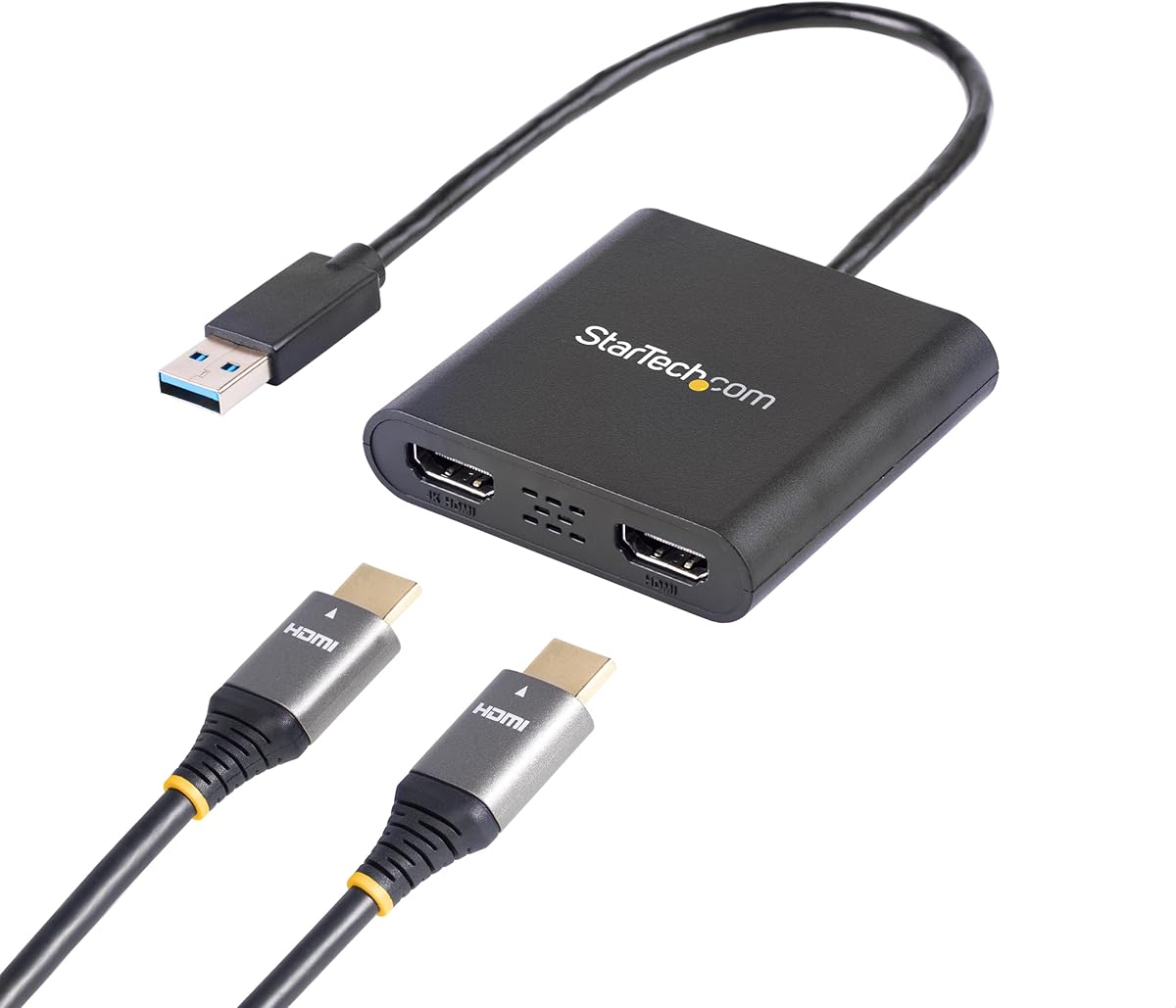
The StarTech USB-A 3.0 to Dual HDMI Adapter stands out as a top choice for users prioritizing reliability and professional-grade performance. With a rating of 4.5 stars, it is designed specifically for IT professionals and Windows users who need a stable connection for extended work sessions.
We may earn a commission when you buy through this link, at no additional cost to you.
Its standout qualities include support for 4K video at 30Hz on one output and 1080p at 60Hz on the other, allowing you to extend your desktop across two monitors effectively. The adapter is built with robust hardware that ensures consistent signal transmission, making it ideal for office environments where downtime is not an option.
While it offers excellent performance, there are trade-offs to consider. The adapter only supports Windows systems, excluding macOS and Linux users. Additionally, installation requires administrator rights for driver setup, which might be a hurdle in restricted corporate environments. However, these limitations are acceptable given the stability and support offered.
If you are a Windows user looking for a dependable way to add dual HDMI monitors to your setup, this adapter is highly recommended. It is backed by a 3-year warranty and 24/5 technical assistance, ensuring long-term peace of mind for your productivity needs.
Designed for IT professionals, this adapter ensures consistent performance for critical work tasks without signal drops.
Enjoy crisp visuals with support for 4K resolution at 30Hz on one monitor while maintaining 1080p on the second.
We may earn a commission when you buy through this link, at no additional cost to you.
The Acer 4-in-1 USB C Hub is an excellent budget-friendly option for users needing dual HDMI output with high refresh rates. Rated 4.2 stars, it delivers 4K@60Hz on both displays, which is rare at this price point. The compact design makes it easy to carry for remote work or travel setups.
We may earn a commission when you buy through this link, at no additional cost to you.
Key strengths include the inclusion of a 100W power delivery port, ensuring your laptop stays charged while using the adapter. Additionally, the USB-A port allows for fast data transfers up to 5Gbps, adding versatility to this hub. It works seamlessly with Windows and macOS devices that support DP Alt Mode.
However, there are some limitations to note. The included cable is only 20cm long, which might be restrictive depending on your desk setup. Also, macOS users are limited to mirroring rather than extending displays, which could be a downside for Mac professionals needing multi-screen workflows.
For those seeking an affordable yet powerful adapter that supports smooth 60Hz video, this is a great choice. Just ensure your device has a compatible USB-C port and consider the cable length before purchasing to fit your specific workspace needs.
Get 4K@60Hz on two monitors without breaking the bank, perfect for fluid visuals and smooth multitasking.
Keep your laptop charged during extended use with the 100W power delivery pass-through feature.
We may earn a commission when you buy through this link, at no additional cost to you.
The Selore&S‑Global USB‑C to Dual HDMI Adapter is a premium choice for users who need robust connectivity and high resolution. With a 4.5-star rating, it supports dual 4K@60Hz displays, delivering sharp and smooth visuals for demanding tasks. It also includes extra ports for data and charging, making it a versatile dock.
We may earn a commission when you buy through this link, at no additional cost to you.
Its standout features include support for extended displays on Windows via MST technology, allowing two different screens to show unique content. The 5Gbps USB-A port ensures quick file transfers, while the 100W PD port keeps your laptop powered. It is designed for high-performance laptops with Thunderbolt or full-function USB-C ports.
Trade-offs include the requirement for specific USB-C ports to function correctly and macOS restrictions to mirroring only. While this limits some Apple users, Windows professionals will find the functionality exceptional. The compact design also makes it easy to transport for hybrid work setups.
If you need a reliable, high-speed adapter that offers both display and charging capabilities, this is an excellent investment. It balances performance and portability well, making it a top pick for those who value premium features in their dual monitor setup.
Extend your workspace with two unique screens using MST technology supported fully on Windows systems.
Combine video, data, and power into one sleek adapter to declutter your desk and boost efficiency.
We may earn a commission when you buy through this link, at no additional cost to you.
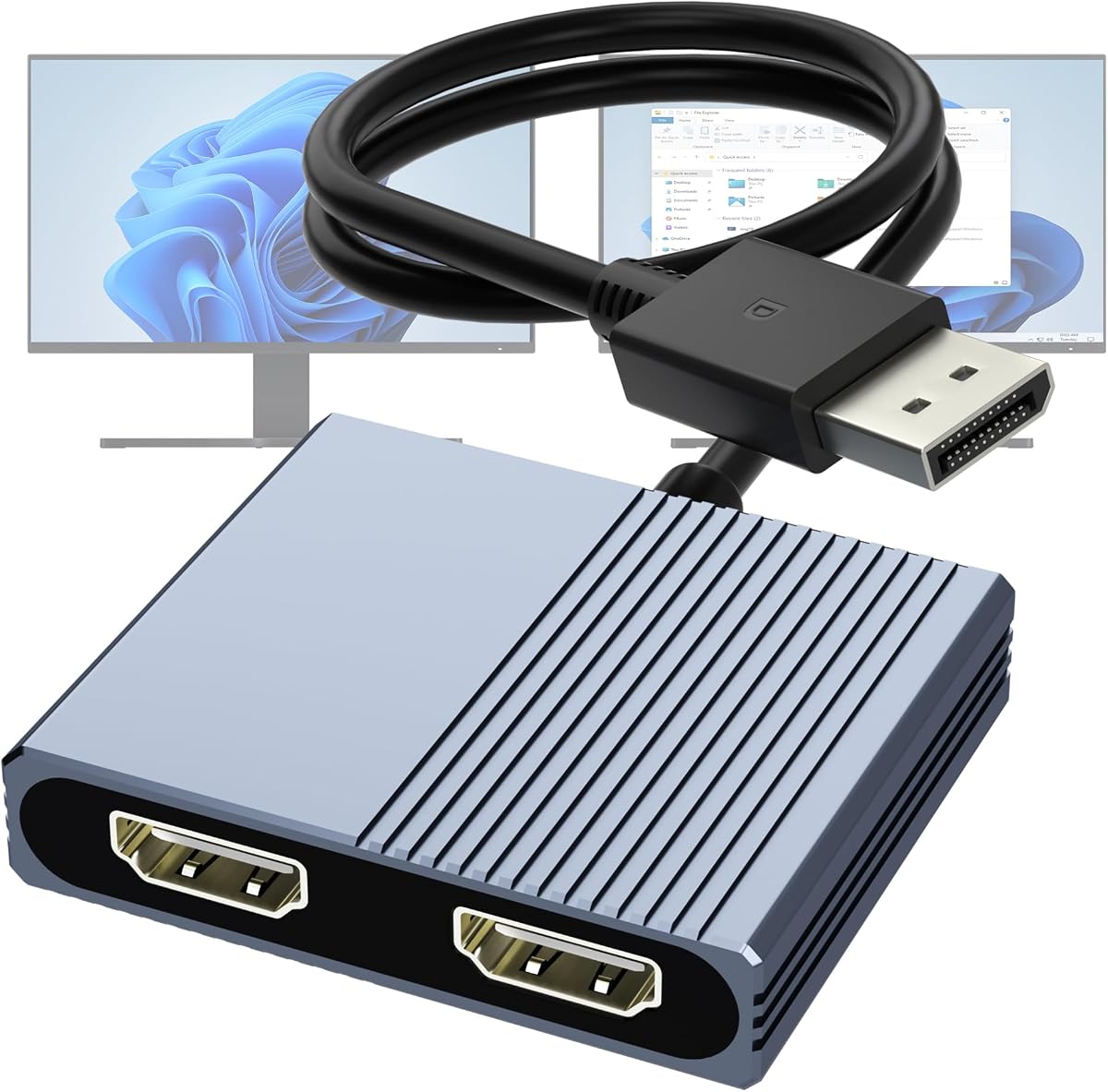
This DisplayPort to Dual HDMI Adapter is specifically designed for users with dedicated graphics cards or desktops featuring DisplayPort outputs. With a 4.1 rating, it allows you to extend your display to two HDMI monitors efficiently. It supports both MST and SST modes, offering flexibility in how you configure your screens.
We may earn a commission when you buy through this link, at no additional cost to you.
Its main strength is the plug-and-play functionality without requiring driver software, which simplifies setup. The built-in smart chip ensures reliable signal transmission and anti-interference performance. It supports resolutions up to 4K@60Hz, provided your system meets the DP1.4 requirements for dual high-res displays.
However, it requires an external 5V 2A power adapter, which is not included in the package. Additionally, it is not compatible with docking stations or USB hubs, limiting its use to direct graphics card connections. These constraints are acceptable for desktop users who need direct GPU control.
If you have a desktop with a DP port and want to add two HDMI monitors without complex software, this adapter is a solid choice. Ensure your cable and monitors support 4K@60Hz to get the best performance from this device.
Ideal for desktop users with dedicated graphics cards that have available DisplayPort outputs.
Get up and running quickly without installing extra software, as it works on plug and play.
We may earn a commission when you buy through this link, at no additional cost to you.
The WAVLINK HDMI Splitter is a versatile option that supports multiple operating systems including Windows, macOS, and Chrome OS. Rated 4.4 stars, it allows you to extend or mirror screens for productivity tasks. The flexible input options let you choose between USB-C or USB-A based on your laptop.
We may earn a commission when you buy through this link, at no additional cost to you.
One of its key strengths is compatibility with Chrome OS and Android devices via OTG, which is rare for adapters in this category. It supports high resolutions like 1440p and 1080p at 60Hz for sharp visuals. The 24-month warranty also adds value to the purchase.
However, note that it is not plug-and-play and requires driver installation for full functionality. It is also not recommended for gaming or HDCP content streaming like Netflix due to limitations. But for office work and basic productivity, it performs very well.
If you need an adapter that works across different OS environments including Chromebooks, this is a great fit. Just be prepared to download drivers before use and reserve it for general productivity rather than media consumption.
Rarely supported in adapters, this model ensures you can connect dual monitors on Chrome OS.
Choose between USB-C or USB-A inputs to match the ports available on your specific laptop.
We may earn a commission when you buy through this link, at no additional cost to you.
The OREI SplitExtend HDMI Splitter is designed to work with a broad range of operating systems including Windows and macOS. With a 4.1 rating, it allows you to connect a single HDMI source to two external displays. The integrated USB-A to USB-C adapter makes it easy to connect to different laptop types.
We may earn a commission when you buy through this link, at no additional cost to you.
Its key strength is the flexibility it offers for both USB-A and USB-C connections, eliminating the need for extra adapters. It supports extended display modes to boost productivity with a 3-screen setup. The package includes one year of manufacturer support to help with any setup issues.
However, it requires driver installation and works best with Intel i5 processors or higher. If your machine has older hardware, performance might be limited. Also, it is not plug-and-play, which means extra steps before initial use.
If you need a versatile solution that accepts various USB inputs and supports multiple OS platforms, this adapter is a good choice. Just ensure your processor meets the requirements to avoid any performance bottlenecks.
Connect via USB-A or USB-C without needing separate adapters, simplifying your workflow.
Boost productivity with the ability to extend your workspace across three screens easily.
We may earn a commission when you buy through this link, at no additional cost to you.
The Selore USB C Docking Station is an 8-in-1 hub that offers comprehensive connectivity for modern laptops. Rated 4.4 stars, it supports dual 4K@60Hz displays to keep your work sharp. With extra USB ports and an SD card reader, it replaces multiple dongles on your desk.
We may earn a commission when you buy through this link, at no additional cost to you.
Its standout feature is the ability to provide stable performance for extended sessions with effective temperature control. The 100W power delivery ensures your laptop charges while you work. It is ideal for those who want an all-in-one solution for home or office use.
Note that macOS users can only mirror displays with this hub, not extend them. Also, it requires a full-featured USB-C or Thunderbolt port to function. If you meet these requirements, it offers excellent value and performance for a complete docking setup.
If you want a single device to handle video, data, and charging needs, this docking station is a strong contender. Just check your laptop's port compatibility to ensure full functionality before purchasing.
Enjoy multiple USB ports and an SD card reader to connect all your peripherals easily.
The intelligent technology ensures stable performance without overheating during long work sessions.
We may earn a commission when you buy through this link, at no additional cost to you.
This 4K HDMI Splitter is a simple and cost-effective solution for users who need to mirror their display to two screens. With a 4.1 rating, it supports 4K at 30Hz and allows for audio synchronization without extra cables. It is plug-and-play and works with various devices including TVs and PCs.
We may earn a commission when you buy through this link, at no additional cost to you.
Its main strength is the ease of use and the affordable price point. Since it does not require any driver installation, you can set it up instantly. It is perfect for presentations where the same content needs to appear on multiple screens simultaneously.
However, it does not support extended display modes, meaning you cannot have two different screens. This limits its utility for productivity workflows. If you only need to duplicate content on two displays, this is an ideal choice without any complexity.
If you are looking for a straightforward way to show the same image on two screens without spending much, this splitter is perfect. It is best used for presentations or media sharing where mirroring is the primary goal.
Start mirroring your display instantly without downloading or installing any software.
Get reliable dual-screen mirroring capabilities at a very budget-friendly price.
We may earn a commission when you buy through this link, at no additional cost to you.
This Selore&S‑Global USB‑C to Dual HDMI Adapter offers comprehensive multiport capabilities for modern laptops. With a 4.5 rating, it provides dual 4K@60Hz video output ensuring clear visuals. The inclusion of high-speed data transfer and 100W power delivery makes it a versatile dock.
We may earn a commission when you buy through this link, at no additional cost to you.
Its key strength is supporting both extended and mirror modes on Windows for flexible display setups. The USB-A port allows quick file transfers, and the PD port keeps your laptop charged. It is designed for Thunderbolt 3/4/5 and full USB-C ports ensuring compatibility with latest devices.
Trade-offs include the requirement for specific ports and macOS mirroring limits. However, for Windows users needing reliable multiport functionality, this adapter excels. It supports high performance and fast speeds which are essential for professional workflows.
If you need a portable hub that handles video data and power simultaneously this is an excellent option. It ensures your laptop stays productive without needing multiple cables for different functions.
Transfer files at 5Gbps while enjoying 4K video on dual screens for optimal productivity.
Keep your laptop powered with 100W pass-through charging for all-day use.
We may earn a commission when you buy through this link, at no additional cost to you.
This DisplayPort to Dual HDMI Adapter is engineered for users with NVIDIA or AMD graphics cards. Rated 4.4 stars, it allows dual 4K@60Hz output providing smooth visuals. The durable aluminum housing helps with heat dissipation ensuring stable performance during heavy use.
We may earn a commission when you buy through this link, at no additional cost to you.
Its standout features include robust construction with gold-plated ports for reliable connections. It supports extended and mirror modes on Windows making it versatile for different workflows. Since it is plug and play there is no need for software installation which simplifies setup.
However, it requires a DP 1.4 connection to achieve dual 4K@60Hz so check your hardware compatibility. For best signal stability longer DP cables are recommended. These requirements ensure the best experience if you have a capable desktop system.
If you have a dedicated GPU and want reliable high-resolution dual displays this adapter is a strong choice. It is built to last and ensures your setup remains professional and efficient for work or creative tasks.
Built with aluminum and gold-plated ports to withstand frequent use and ensure stable signals.
Designed specifically to work with NVIDIA and AMD graphics cards for maximum output.
We may earn a commission when you buy through this link, at no additional cost to you.
Selecting the right adapter depends on several factors including compatibility and resolution needs. Understanding these elements ensures you get a device that meets your workflow requirements.
Different adapters support various operating systems such as Windows macOS and Linux. Always check if the device supports your specific OS before purchasing to ensure proper functionality and driver installation if needed.
Ensure the adapter matches your system to avoid connectivity issues or limited features.
The resolution and refresh rate determine the clarity and smoothness of your display. Look for adapters that support at least 1080p or 4K resolutions and consider 60Hz for smoother video and scrolling.
Prioritize 4K and 60Hz support if you need high-quality visuals for work or media.
Identify the ports available on your laptop such as USB-C USB-A or DisplayPort. Choose an adapter that connects directly to your device to avoid needing extra cables or converters.
Match the adapter input to your laptop ports to ensure a direct and stable connection.
Many modern laptops rely on USB-C for power which means you may need an adapter with power delivery. Check if the adapter supports charging while in use to keep your device powered during tasks.
Opt for an adapter with power pass-through to prevent battery drain during use.
Some adapters require driver installation while others are plug-and-play. If you need plug-and-play convenience confirm this feature before buying especially if you have restricted admin rights.
Check driver requirements to ensure you can set up the adapter easily on your system.
The build quality affects how long the adapter lasts under frequent use. Look for materials like aluminum and gold-plated ports that offer better heat dissipation and connection reliability.
Invest in adapters with durable materials to ensure long-term performance and reliability.
Some users need to extend their screens while others prefer mirroring. Ensure the adapter supports your preferred display mode such as MST for extension or SST for mirroring based on your needs.
Choose an adapter that supports your required display mode to maximize productivity.
A good warranty and technical support can be invaluable if issues arise. Check if the manufacturer offers a warranty period and accessible support channels to resolve any problems.
Prioritize brands with strong support and warranty coverage for peace of mind.
To use your adapter properly connect it directly to your laptop or desktop USB or DisplayPort. Then connect your HDMI monitors to the adapter outputs and power on your devices to detect the screens.
Adjust your display settings in the operating system to extend or mirror the screens as desired. This allows you to manage multiple windows across monitors efficiently for better productivity.
To care for the adapter avoid bending the cable excessively and keep it in a cool dry place. Regularly check for dust in ports and wipe them gently to ensure lasting performance.
Most dual HDMI adapters support mirrored displays on macOS but extended displays require MST support which macOS does not support. Check the product details to confirm if extended modes are available for your system.
Some adapters are plug-and-play while others require driver installation for proper functionality. Review the product description to know if drivers are needed before you purchase the device.
Many adapters support 4K resolutions up to 30Hz or 60Hz depending on the model. Ensure your chosen adapter supports the specific 4K refresh rate you need for smooth video.
Adapters with USB-C power delivery support charging your laptop while in use. Check if the adapter includes a PD port to keep your device powered during multitasking.
Compatibility depends on the port types available on your laptop. Ensure your laptop has the required USB-C USB-A or DisplayPort inputs to connect the adapter correctly.
Check your graphics card or laptop specifications for support of DP 1.4 or HDMI 2.0 standards. These are typically required to drive dual 4K displays at 60Hz effectively.
Some adapters may not support HDCP protected content streaming on services like Netflix due to limitations. Verify if the device supports these requirements if you plan to watch streaming media.
MST allows extended displays with separate content on each monitor while SST mirrors the same content on all screens. Choose based on whether you need multiple views or identical displays.
Choosing the right Dual HDMI Monitor Adapter can transform your workspace by allowing multiple displays for better productivity. The StarTech and Selore options offer premium features while the Acer adapter provides excellent budget performance.
Prioritize factors like OS compatibility and power delivery to ensure you select a device that meets your daily needs. Matching your laptop ports and display requirements will help avoid connectivity issues and improve workflow.
Prices and availability may change so always check the latest details before purchasing. With the right adapter you can extend your screens efficiently and enjoy a more organized and productive environment.