
Anker 8-in-1 USB C Hub
4.5Editor score
85W Power Delivery
Dual 4K HDMI
Compact design
This guide compares the top docking station with Power Delivery options for 2026 to help you choose the best hub for charging and connectivity.
Finding the right docking station with Power Delivery is essential for modern laptop users who need to charge and connect multiple devices simultaneously. A good dock simplifies your workspace by turning a single USB-C port into a full desktop experience with video, data, and power output.
We compared ten top-rated models based on their power delivery capabilities, video output support, port selection, and overall build quality. Our analysis focuses on how well each station handles high-wattage charging while supporting multiple monitors for productivity tasks.
Each pick below shows key features, pros, cons, and detailed specs to help you decide which dock fits your specific laptop and workflow needs. Keep in mind that prices and availability can change frequently, so verify current details before making your final purchase.
4.5Editor score

4.5Editor score

4.0Editor score
Here is a side-by-side comparison of all ten docking stations reviewed in this guide, highlighting their key specifications and best use cases for different users.



The Dell Pro Laptop Docking Station WD25 stands out as a top-tier choice for those needing reliable power and multi-monitor support. With a strong 4.5 rating, it delivers 100W power to laptops while supporting up to four high-resolution displays for a true desktop experience.
We may earn a commission when you buy through this link, at no additional cost to you.
Its thoughtful design includes an ambidextrous USB-C cable that routes left or right, making cable management easier. The robust connector ensures durability, and the dock supports enhanced compatibility for both Dell AI PCs and non-Dell machines.
While it is built for enterprise manageability, which might be overkill for home users, this also means it is built to last. The sustainable materials and reduced power consumption are significant bonuses for eco-conscious buyers.
Best for professionals who want a single, durable docking solution that handles power, data, and video seamlessly. If you need reliable charging and multiple screens, this is a premium pick worth considering.
This dock reduces power consumption by up to 72% in standby mode, saving energy costs over time.
The ambidextrous USB-C cable allows you to route connections based on your desk layout for better organization.
We may earn a commission when you buy through this link, at no additional cost to you.
Plugable offers a robust solution for users stuck with single-display limits, especially on Apple M1, M2, or M3 chips. This station uses DisplayLink tech to drive three HDMI displays simultaneously, making it perfect for hybrid work teams needing expanded visibility.
We may earn a commission when you buy through this link, at no additional cost to you.
The dock includes 100W Power Delivery to keep your host system charged while connected to heavy peripherals. It is optimized for data analysis and conferencing, turning your notebook into a full workstation easily.
While it does not support Linux or HDCP for streaming, its enterprise-grade reliability and lifetime support make up for these gaps. IT departments trust it for hot-desking setups where consistent connectivity is non-negotiable.
If you are an Apple user needing three monitors, this is one of the few reliable options available. It ensures your Mac stays charged and connected without complex driver workarounds.
Compatible with M1 through M5 chips, allowing extended desktop modes that are usually restricted on macOS.
Backed by North American-based technical support and a compatibility guarantee for IT professionals.
We may earn a commission when you buy through this link, at no additional cost to you.
The Dell WD19S is built for those who demand maximum power throughput from their docking station. With 130W Power Delivery and an 180W adapter, it handles power-hungry laptops that standard docks cannot support effectively or consistently.
We may earn a commission when you buy through this link, at no additional cost to you.
It offers dual DisplayPort and HDMI outputs to drive multiple screens. While the rating is lower, this is often due to specific compatibility requirements rather than inherent flaws in the dock's performance capabilities.
The device is designed to optimize your workspace with a focus on robust power and essential video connections. It lacks some modern features found in newer models but remains a solid choice for specific Dell hardware needs.
Choose this if your laptop requires high-wattage charging to run efficiently. It provides a stable link between your powerful machine and your peripherals without sacrificing performance.
The 180W AC adapter ensures your dock can handle power delivery without thermal throttling under load.
Dual DisplayPort and HDMI ports allow you to connect different monitor types simultaneously for flexible setups.
We may earn a commission when you buy through this link, at no additional cost to you.
The Dell WD19 is a staple for many corporate environments, offering a comprehensive set of ports including dual DisplayPort and HDMI. It delivers 130W Power Delivery, ensuring that even heavy-duty laptops stay powered during intensive tasks.
We may earn a commission when you buy through this link, at no additional cost to you.
With 1x USB-C 3.2 Gen 2 and multiple USB-A ports, you can connect legacy devices alongside modern ones. The included SuperSpeed USB-C cable makes setup quick and straightforward for new users.
The dock is robust and includes Gigabit Ethernet for reliable network connections. While it is not the most compact option, its stability and broad connectivity make it a reliable choice for office setups.
If you are using a Dell Latitude or similar workstation, this dock provides the power and versatility needed for a productive environment. It is a workhorse for daily business tasks.
USB-A ports support power share to charge small devices even when the main dock is idle.
Includes combo audio and dedicated audio out for flexible headset or speaker connections.
We may earn a commission when you buy through this link, at no additional cost to you.
Acer delivers a powerful all-in-one solution for Windows users needing three screens. This 13-in-1 station supports triple displays via HDMI and DisplayPort, making it ideal for financial charts, code, and multitasking.
We may earn a commission when you buy through this link, at no additional cost to you.
It includes a 110W adapter that provides 100W Power Delivery to your laptop. The aluminum body dissipates heat efficiently, ensuring stable performance during prolonged use without overheating.
A security slot is integrated to deter theft, adding a layer of physical protection for your desk setup. It also includes SD/TF readers for quick data transfers from cameras or memory cards.
Best for Windows professionals who need real estate across three screens. Ensure your laptop supports Display Stream Compression to maximize resolution output on this dock.
Supports extended desktop with three independent screens for Windows laptops using MST technology.
Integrated slot allows you to lock the dock to your desk with a standard cable lock for safety.
We may earn a commission when you buy through this link, at no additional cost to you.
Anker Nano is unique because it splits into a desktop dock and a portable hub. This 13-in-1 setup offers triple display support and 10Gbps data transfer, making it versatile for both office and travel.
We may earn a commission when you buy through this link, at no additional cost to you.
The detachable 6-in-1 hub allows you to take a subset of ports with you, ensuring you always have connectivity when on the go. It includes a 140W adapter to ensure stable performance under full load.
It is plug and play for Windows laptops, requiring no extra drivers. The compact design helps reduce cable chaos while still supporting high-speed data transfer for video files or large datasets.
Ideal for hybrid workers who need a powerful home office but also want portability. The ability to snap off a portion for travel makes it a smart choice for frequent travelers.
The detachable hub lets you separate home and mobile setups without buying two different devices.
One USB-C Data port supports 10Gbps transfer speeds for quick file moves to external drives.
We may earn a commission when you buy through this link, at no additional cost to you.
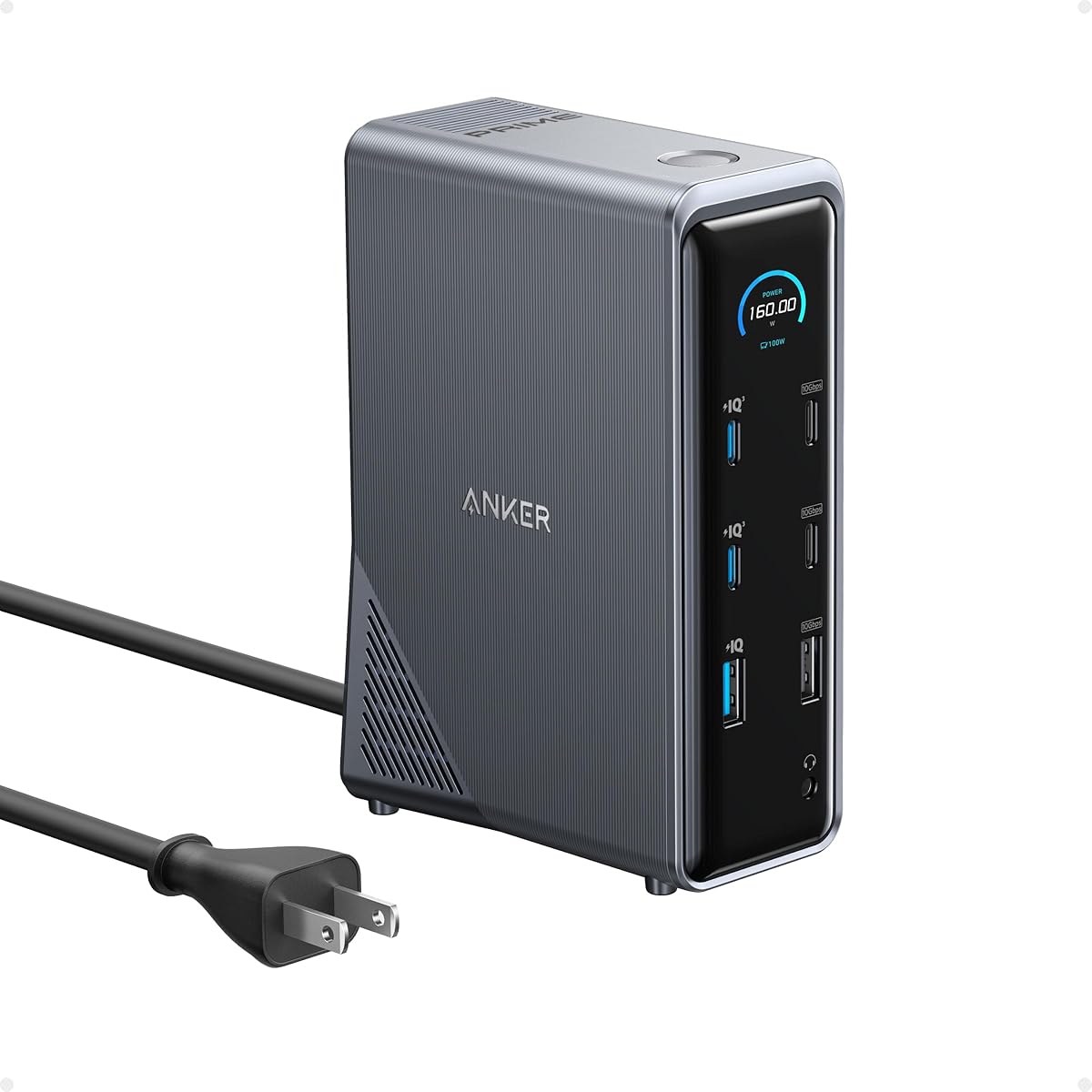
The Anker Prime provides an impressive 160W total output, allowing you to charge up to four devices at once. This is perfect for users who need to power multiple peripherals simultaneously while maintaining fast data transfer.
We may earn a commission when you buy through this link, at no additional cost to you.
It supports dual 4K displays up to 2K@60Hz with DP 1.4 laptops. The versatile port arrangement helps you manage multiple data flows with ease and efficiency.
Built for modern setups, it supports Windows 10 and 11 and ChromeOS. It focuses on speed and power, giving you the flexibility to run multiple high-demand tasks at once.
Choose this if you have several USB-C devices that need charging alongside your laptop. It offers a high ceiling for power needs that typical docks might struggle to meet.
Three USB-C ports can deliver power to multiple devices at once, ideal for tablets and phones.
Manage data across devices with 10Gbps speeds for quick file transfers and efficient workflows.
We may earn a commission when you buy through this link, at no additional cost to you.
Anker's 8-in-1 hub is a budget-friendly option that still delivers strong performance for everyday tasks. It supports dual HDMI displays up to 4K@30Hz or single 4K@60Hz for high-quality viewing.
We may earn a commission when you buy through this link, at no additional cost to you.
With 85W pass-through charging, it keeps most laptops powered while connected to peripherals. The included microSD/SD card reader is a nice touch for photographers or creative professionals.
It is compact and easy to carry, making it suitable for travel. While it does not offer the highest wattage for power delivery, it covers the basics well for most users.
Best for those who want a simple, reliable hub without breaking the bank. It handles video and power well for typical home or office use cases.
Offers reliable performance and quality at a lower price point compared to premium docks.
Dual HDMI ports allow you to stream or mirror content on two screens simultaneously.
We may earn a commission when you buy through this link, at no additional cost to you.
This Anker Prime model stands out with a built-in smart display that lets you monitor charging power and fan cooling modes in real time. It supports triple 4K displays for ultimate productivity on Windows.
We may earn a commission when you buy through this link, at no additional cost to you.
With a 140W upstream port, it delivers power to your laptop while handling data and peripherals. ActiveShield 3.0 helps keep the device cool and stable during long sessions.
While DRM-protected streaming may show black screens, this is a common DisplayLink limitation. The dock includes a dedicated 2.5Gbps Ethernet port for faster network speeds on modern routers.
Best for tech-savvy users who want visibility into their dock's performance. If you need triple screens and monitoring features, this premium option delivers advanced control.
View charging power and display performance directly on the smart display screen.
2.5Gbps Ethernet port supports faster internet connections compared to standard Gigabit ports.
We may earn a commission when you buy through this link, at no additional cost to you.
The Dell Pro Smart Dock SD25 is designed for enterprise environments where remote management is crucial. It uses Wi-Fi for firmware updates and management, reducing IT workload significantly.
We may earn a commission when you buy through this link, at no additional cost to you.
It offers secure communications with WPA-3 encryption and hardware-based encryption to protect sensitive data. This is a key differentiator for companies that handle confidential information daily.
The ambidextrous cable allows flexible routing for better cable management on desks. Sustainability is also a focus, with recycled materials used in construction and packaging.
Best for IT teams managing large fleets of laptops. If you need secure, remotely managed peripherals, this dock offers robust features that standard docks do not provide.
Configure and update docks over Wi-Fi without end-user presence to save IT time.
Tamper-resistant hardware encryption keeps your data safe from unauthorized access.
We may earn a commission when you buy through this link, at no additional cost to you.
Choosing the right dock requires balancing power needs, video output, and port selection with your specific laptop model and budget.
Power Delivery (PD) wattage determines how much energy your dock can send to your laptop. Ensure the dock provides at least 65W for ultrabooks and up to 100W or more for high-performance workstations to avoid running on battery while connected.
Choose a dock that matches your laptop's charger requirements to prevent slower charging or insufficient power under load.
Look for docks that support the number of monitors you need and their resolutions. Some docks use DisplayLink technology to bypass OS limitations, while others rely on native DP Alt Mode for simpler plug-and-play setups.
Verify that your laptop supports the required display technology to ensure smooth performance and avoid driver complications.
Assess the variety of ports available such as USB-C, USB-A, HDMI, DisplayPort, and Ethernet. A good selection ensures you can connect legacy peripherals and modern devices without constant adapters.
Select a dock with the specific ports you need to avoid clutter and ensure easy access to all your devices.
Check that the dock is compatible with your specific laptop brand and operating system. Some docks have special features for Dell or HP machines, while others are universal across Windows and macOS.
Ensure compatibility to avoid connectivity issues or limited functionality after purchasing the dock.
Docks with solid metal bodies or effective cooling fans tend to perform better under load without overheating. This is essential for maintaining stable data transfer speeds and power delivery during long work sessions.
Choose a dock with a durable build and adequate cooling to ensure longevity and consistent performance.
Some docks offer extra features like card readers, security slots, or remote management capabilities. Evaluate if these features add value to your workflow or are unnecessary extras.
Prioritize features that directly enhance your productivity or security needs rather than paying for unused functions.
Consider docks that include ambidextrous or flexible cables that route neatly around your desk. Good cable management reduces clutter and makes your workspace safer and more professional.
Look for docks with cable routing options to keep your desk organized and your setup tidy.
Check the warranty length and availability of customer support for the dock. Reliable support can save you time and money if issues arise with connectivity or power delivery.
Choose a brand with a strong reputation for support to ensure peace of mind after purchase.
Connect your laptop to the dock using a high-quality USB-C cable rated for both data and power. Ensure the dock is plugged into a reliable AC outlet to maintain steady power delivery to your laptop.
Arrange your cables neatly to avoid strain on ports. Use the ambidextrous routing options if available to keep your desk organized and prevent accidental unplugging.
Clean the ports periodically with compressed air to remove dust that could interfere with connections. Keep the dock in a well-ventilated area to prevent overheating during heavy use.
Yes, many docks support up to 100W Power Delivery which is enough to charge most laptops. However, high-performance machines might need their own chargers for full power under heavy load.
DP Alt Mode uses your laptop's native video capabilities, while DisplayLink uses software compression to drive more displays. DP Alt Mode is simpler but limited by OS restrictions on some laptops.
Most docks are plug and play, but DisplayLink docks require drivers for multi-monitor support on macOS. Check the manufacturer's site to install any necessary software for your OS.
Yes, docks usually have multiple USB-A and USB-C ports to connect keyboards, mice, and external drives. Ensure the total power draw stays within the dock's limits to avoid issues.
Check the product specifications for HDMI version details such as 2.0 or 2.1 to ensure it supports your monitor's refresh rate and resolution requirements.
Yes, modern docks have protection circuits to prevent overcharging. However, it is good practice to occasionally unplug your laptop to let the battery discharge naturally.
Some docks come with detachable hubs that allow portable use. Look for compact models with short cables if you plan to carry your dock with your laptop regularly.
Your laptop will switch to battery power automatically. Using a small UPS with your dock can prevent data loss during unexpected power outages in offices.
We covered ten top docking stations that offer reliable Power Delivery and versatile connectivity for different needs. From budget-friendly options to premium smart docks, there is a suitable choice for every user.
Prioritize power wattage and video output support based on your laptop and monitor setup. A good dock should not only charge your laptop but also enhance your productivity with seamless multi-screen use.
Always check current prices and availability before buying since models and deals change frequently. Investing in a quality dock will simplify your workspace and boost your workflow efficiency in the long run.