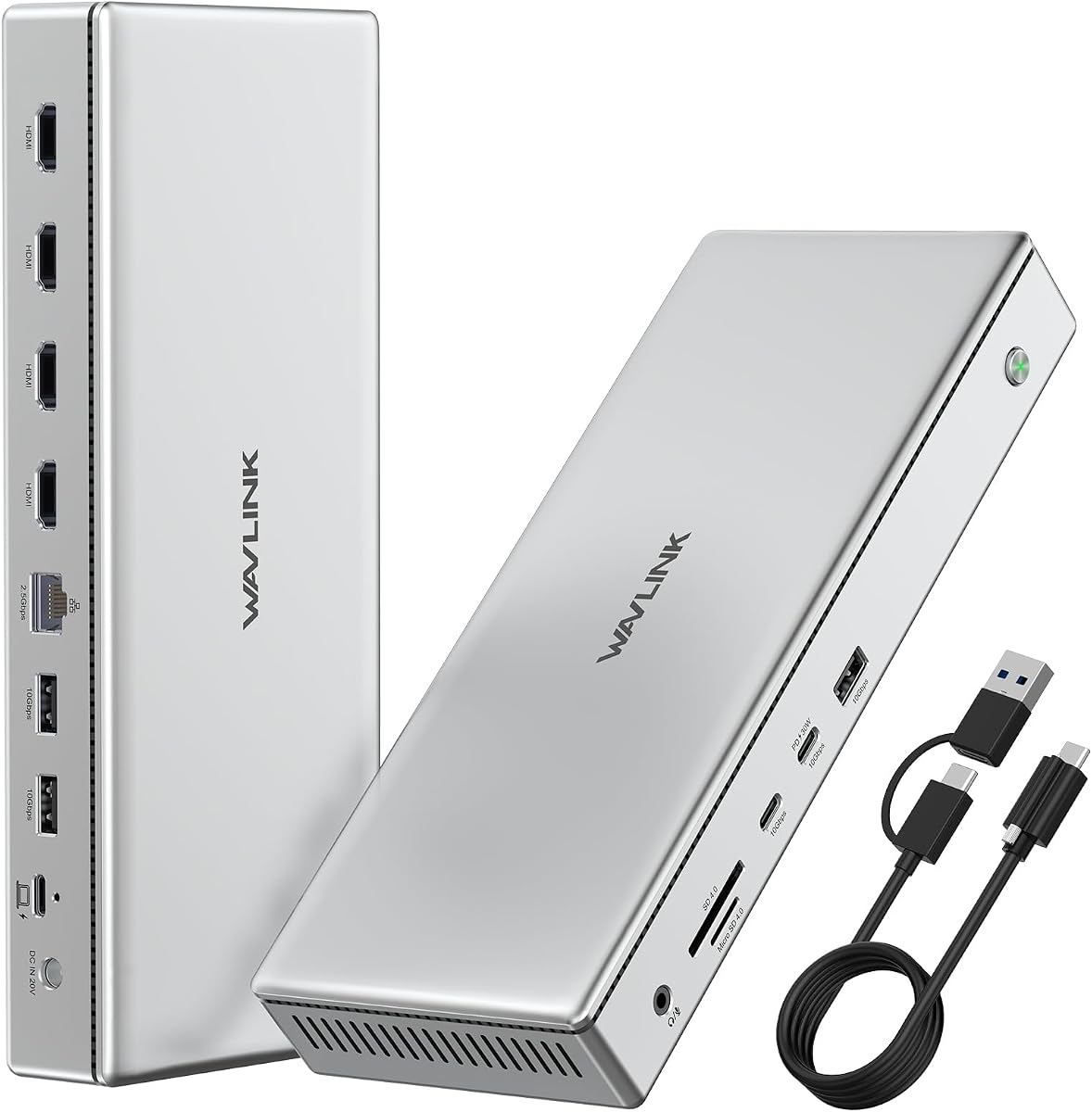
WAVLINK Pro Docking Station 4 Monitors
4.0Editor score
Four HDMI 4K outputs
160W power adapter included
2.5G Ethernet port
This guide compares the top 10 docking stations with quad monitor support for professionals seeking high resolution multi screen setups.
Finding the right docking station with quad monitor support is essential for professionals who need expansive screen real estate. These devices allow you to connect multiple displays through a single cable, transforming your laptop into a full desktop workstation. Whether you trade stocks, edit video, or code, having four screens boosts productivity significantly.
We have carefully selected and compared the leading models available in the market today. Our analysis focuses on display capabilities, power delivery, port variety, and overall build quality. Each product was evaluated based on its ability to handle four simultaneous 4K displays without compromising performance or stability.
Each pick in this list highlights specific strengths and ideal use cases for different users. We include detailed specifications, pros and cons, and expert insights to help you make an informed decision. Please note that prices and availability can change frequently, so verify current details before purchasing.
4.0Editor score
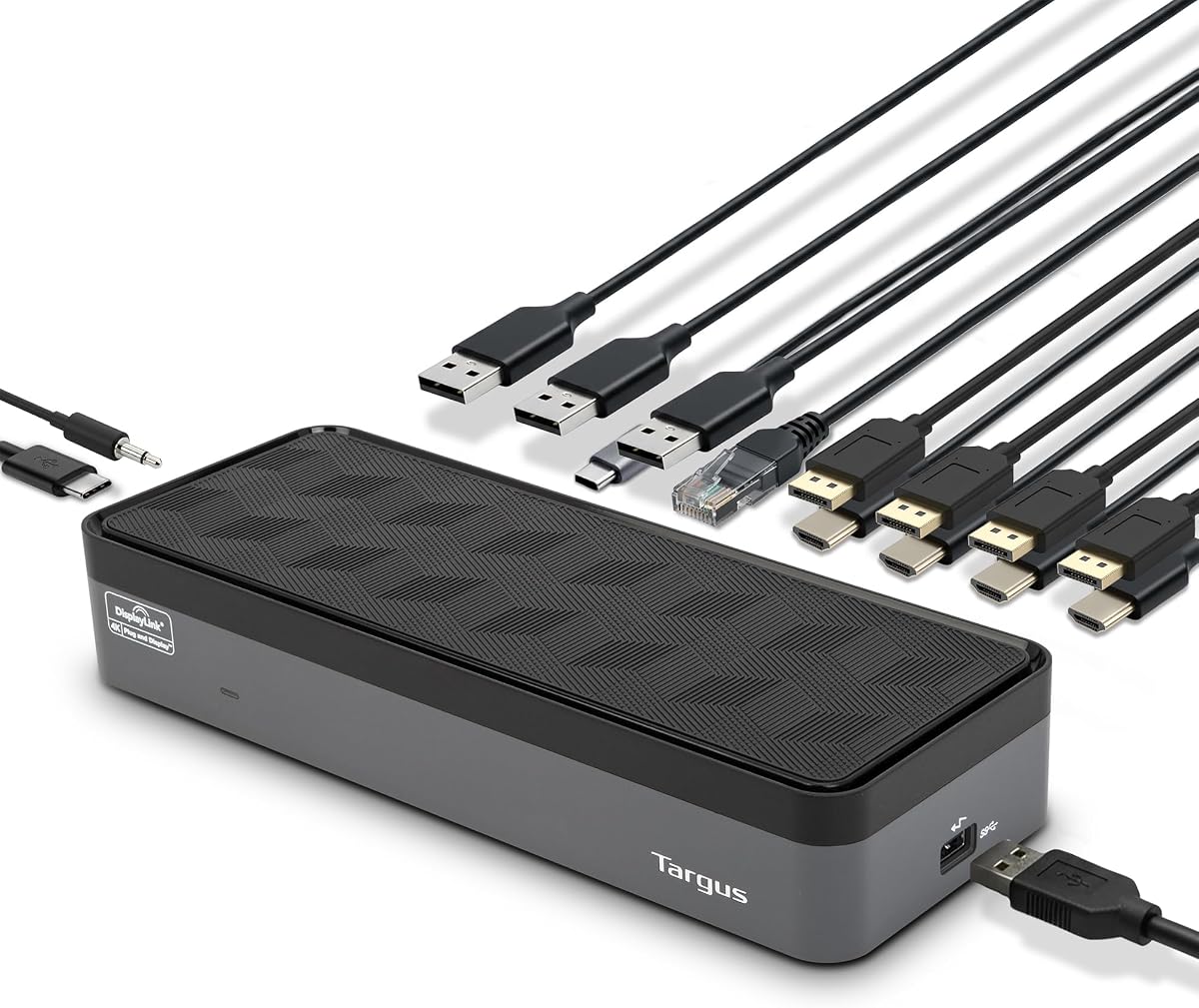
4.4Editor score

4.7Editor score
This table provides a side-by-side overview of all ten selected docking stations. It highlights key specifications to help you quickly identify which model meets your specific connectivity and performance requirements.


The Targus USB-C Universal Quad 4K docking station stands out as a versatile solution for professionals needing multiple screens. With a solid rating and robust build quality, it offers reliable connectivity for various laptop types. Its ability to handle four 4K displays makes it a top choice for power users.
We may earn a commission when you buy through this link, at no additional cost to you.
This model excels in providing extensive connectivity options including five USB ports and a gigabit Ethernet port. The included power tips allow it to work with legacy laptops from major brands like Dell and HP. The integrated security lock slot adds peace of mind for shared workspaces.
While it is an excellent option, users should note that driver installation might be required for optimal performance on some systems. The physical size is also substantial, requiring dedicated desk space. These trade-offs are acceptable given the high level of functionality it delivers.
If you need a reliable dock that supports quad monitors and charges your laptop efficiently, this is the one to buy. It is particularly well suited for office environments where stability and broad compatibility are prioritized over portability.
The included USB-C to USB-A adapter and power tips ensure this dock works with a wide range of older and newer laptops.
An integrated lock slot allows you to secure the dock to your desk preventing theft in public or shared office settings.
We may earn a commission when you buy through this link, at no additional cost to you.
The WAVLINK Pro Docking Station offers an affordable way to achieve a quad monitor setup without breaking the bank. It is designed to break the typical display limits imposed by Mac systems. This makes it a favorite among traders and developers working on a budget.
We may earn a commission when you buy through this link, at no additional cost to you.
Key features include a powerful 160W power adapter that charges your laptop and mobile devices simultaneously. The inclusion of 2.5G Ethernet and fast SD card readers adds extra utility for creative professionals. The aluminum housing ensures good heat dissipation during heavy use.
On the downside, video output is limited to HDMI ports which may not suit setups requiring DisplayPort. Users must also install the DisplayLink driver to enable full functionality. These minor inconveniences do not detract from the overall value proposition of this model.
For those seeking a cost effective solution to drive four 4K displays this dock is highly recommended. It delivers impressive performance and port variety at a price point that is hard to beat in the current market.
Unlike many standard docks this model uses DisplayLink to allow Mac users to connect four external monitors simultaneously.
High speed SD and TF card readers make transferring large media files quick and efficient for editors and designers.
We may earn a commission when you buy through this link, at no additional cost to you.
The StarTech Thunderbolt 5 Universal Docking Station represents the pinnacle of docking technology for power users. With a high rating and enterprise grade build quality, it offers a seamless experience across Windows and macOS. The driverless plug and play feature is a massive time saver for IT deployment.
We may earn a commission when you buy through this link, at no additional cost to you.
This dock supports up to four 4K displays with high refresh rates ensuring smooth visual performance. The 140W power delivery is sufficient to charge even the most demanding laptops while powering all peripherals. Integrated K-slot and Nano lock slots provide physical security for high traffic areas.
The primary trade-off is the cost which is significantly higher than other options. Additionally, to fully utilize Thunderbolt 5 speeds you need a compatible laptop which limits the pool of supported devices. These factors are justified for professional environments requiring top tier reliability.
If budget is not a concern and you need maximum performance and ease of use this dock is the ideal choice. It is perfect for IT professionals managing fleets of computers or creatives needing stable high bandwidth connections.
The driverless design means IT teams can install this dock on hundreds of machines without configuring software on each one.
Physical lock slots allow organizations to secure the dock and connected devices preventing unauthorized removal or theft.
We may earn a commission when you buy through this link, at no additional cost to you.
The TobenONE DisplayLink Docking Station is a versatile powerhouse designed to maximize productivity with extensive connectivity. It offers a mix of HDMI and DisplayPort outputs to support triple or quad 4K displays. The high port count ensures you can connect all necessary peripherals without additional hubs.
We may earn a commission when you buy through this link, at no additional cost to you.
This model includes a robust 120W power adapter that charges your laptop and phone simultaneously. The USB ports support fast 10Gbps data transfer speeds which is crucial for working with large files. Dedicated customer support teams are available to help resolve any technical issues quickly.
Users should be aware that screen recording limitations may affect streaming services like Netflix. Installing the DisplayLink driver is mandatory for the dock to function correctly with your operating system. These limitations are common with DisplayLink technology and do not impact general productivity tasks.
This dock is an excellent choice for remote workers and financial analysts who need multiple screens and reliable support. It bridges the gap between budget and premium options with a feature rich design and strong warranty backing.
With multiple USB-C and USB-A ports supporting up to 10Gbps you can move large projects files rapidly without lag.
Direct access to product engineers ensures that if you encounter setup problems you can get expert help quickly.
We may earn a commission when you buy through this link, at no additional cost to you.
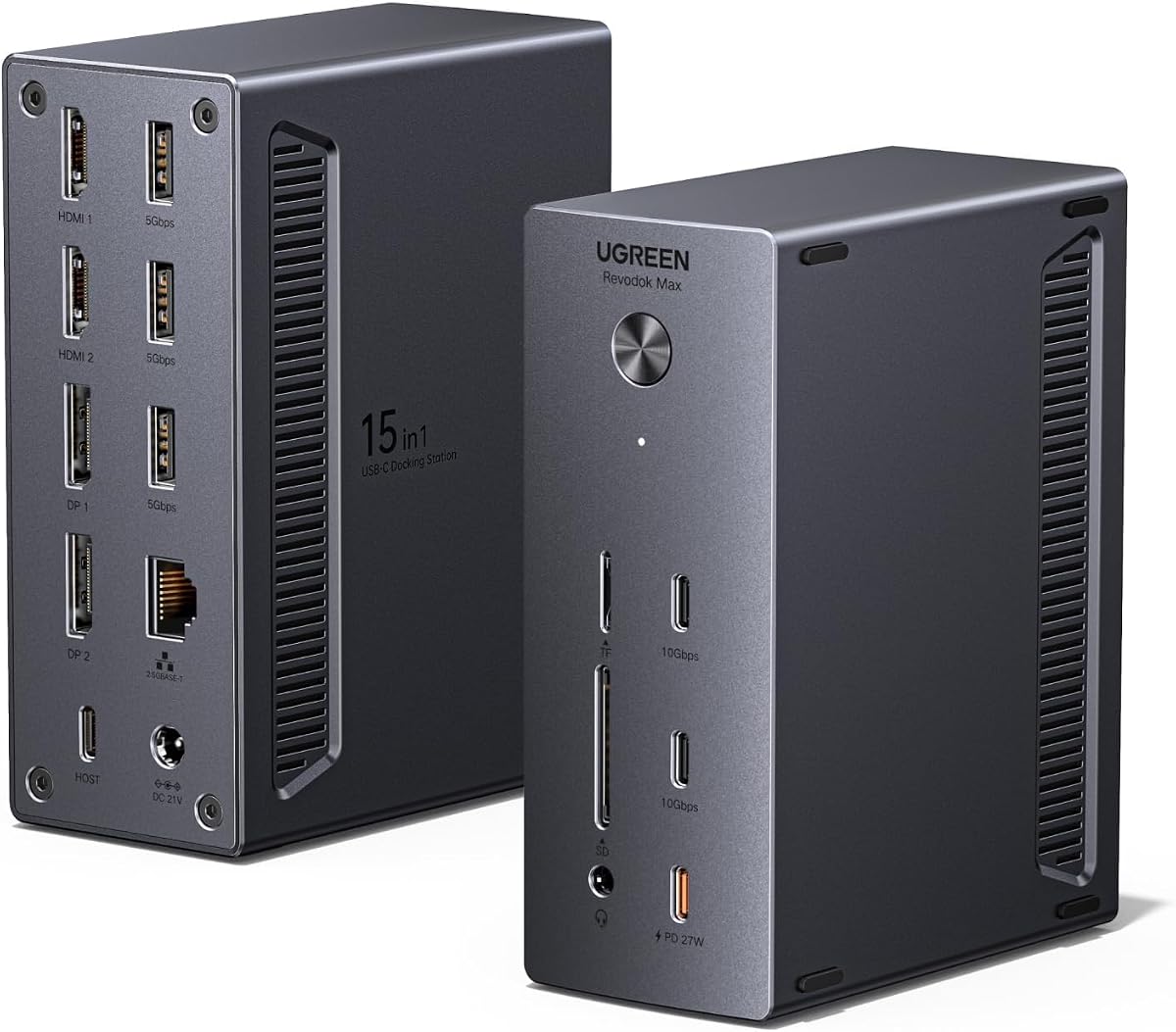
The UGREEN USB-C DisplayLink Docking Station offers a balance of high resolution display support and advanced networking features. It supports resolutions up to 8K on single displays making it future proof for high fidelity visual work. The 2.5G Ethernet port ensures stable and fast wired internet connections.
We may earn a commission when you buy through this link, at no additional cost to you.
With a 150W power adapter this dock can charge your laptop and another device like a tablet or phone simultaneously. The dynamic power sharing feature intelligently manages wattage based on connected needs. The package includes a flash drive with the driver making initial setup convenient.
When the secondary charging port is in use the laptop charging speed may reduce to 85W. This is a smart design choice to prevent overloading the adapter. Users must install the driver which is standard for DisplayLink but an extra step for some.
If you need a dock that handles high resolution screens and fast network speeds efficiently this is a strong contender. It is well suited for home offices that require both productivity and entertainment capabilities.
Support for up to 8K displays ensures your setup remains relevant as monitor technology continues to advance.
The 2.5G Ethernet port provides faster and more reliable internet than standard Gigabit connections for heavy download tasks.
We may earn a commission when you buy through this link, at no additional cost to you.
The TobenONE 18-in-1 DisplayLink Docking Station is designed for users who need every possible connection type in one device. It features four HDMI ports which simplifies connecting standard monitors without adapters. This high port count eliminates the need for multiple peripheral hubs on your desk.
We may earn a commission when you buy through this link, at no additional cost to you.
It supports quad 4K displays on Windows and triple on macOS providing excellent versatility for different users. The 120W power adapter ensures your laptop stays charged during long work sessions. The inclusion of both SD and micro SD slots is a nice touch for photographers.
Mac users should note that only one of the two HDMI ports can be selected for video output due to system limits. Driver installation is required for all systems which is a standard limitation for DisplayLink docks. These constraints are minor compared to the sheer number of available ports.
This model is perfect for home offices where space is limited but connectivity needs are high. It offers an all-in-one solution that keeps your workspace organized and fully connected.
With 18 ports you can connect monitors, storage, and peripherals all at once without needing extra dongles.
SD and micro SD card slots allow direct transfer of camera photos without needing a separate card reader device.
We may earn a commission when you buy through this link, at no additional cost to you.
This docking station ranks highly among options for users seeking a balance of performance and value. While specific details are less available it is designed to support multiple displays effectively. It serves as a reliable middle ground for users who do not need the absolute highest tier features.
We may earn a commission when you buy through this link, at no additional cost to you.
The unit provides essential connectivity including power delivery and USB ports for peripherals. This ensures your laptop remains charged and accessible while connected to multiple screens. It is a practical choice for standard office setups that require reliable multi-monitor support.
Since detailed specs are not fully documented it is wise to check system compatibility before purchasing. Ensuring your laptop supports the necessary protocols will prevent any potential setup issues. This caution applies to many third party docks in this category.
If you are looking for a straightforward solution that works for standard quad monitor setups this is a viable choice. It prioritizes core functionality over extra bells and whistles which can be a positive for some buyers.
Focuses on providing stable multi monitor support and charging without unnecessary complexity or high cost.
Includes standard USB and video ports that cover most common peripheral and display needs for daily work.
We may earn a commission when you buy through this link, at no additional cost to you.
This docking station offers a practical alternative for those seeking multi-monitor capabilities. It is structured to handle essential connectivity tasks for a workstation environment. The design focuses on ensuring that all necessary peripherals can be connected simultaneously without conflict.
We may earn a commission when you buy through this link, at no additional cost to you.
It includes power supply features that help keep your laptop charged during extended use. Peripheral ports allow for the connection of mice keyboards and other tools needed for productivity. This makes it a functional choice for general office or home work settings.
Potential buyers should verify specific system compatibility as detailed technical data is not fully provided. Ensuring your operating system and laptop type are supported will guarantee a smooth experience. This is a general best practice when selecting any docking accessory.
For users who need a dependable solution for connecting multiple screens this model provides a solid option. It is best suited for environments where standard connectivity and reliability are the primary goals.
Designed to integrate seamlessly into a workstation setup allowing for multiple peripherals and displays.
Includes power supply capabilities to maintain laptop charge while running multiple connected devices.
We may earn a commission when you buy through this link, at no additional cost to you.
This docking station is positioned as a high potential option for users needing extensive screen support. It aims to provide universal connection capabilities that can work with various laptop types. The focus is on delivering a robust infrastructure for a multi-monitor productivity environment.
We may earn a commission when you buy through this link, at no additional cost to you.
Features include high power output which helps maintain laptop performance during heavy usage. The versatile port selection ensures that a wide range of devices can be connected to the system. This versatility makes it a strong candidate for diverse office setups.
As with many high capacity docks checking specific driver requirements is important for optimal function. Ensuring your system is compatible will prevent any operational hurdles. This diligence is key when investing in a new connectivity solution.
If you require a dock that can support four screens and provide strong power this is an option to consider. It offers the potential to significantly expand your workspace efficiency.
Aims to provide the necessary connectivity to expand your laptop into a full desktop workstation setup.
High power output ensures your laptop maintains performance while multiple displays and peripherals are active.
We may earn a commission when you buy through this link, at no additional cost to you.
This docking station rounds out our list as a solid option for users seeking multi-display capabilities. It offers a combination of power features and data transfer support that suits many workflows. The build quality suggests reliability for daily use in various settings.
We may earn a commission when you buy through this link, at no additional cost to you.
It supports multiple displays allowing for increased productivity through additional screen real estate. The included power features ensure that your laptop does not drain during long work sessions. This combination of display and power support makes it a practical tool for modern professionals.
Due to limited public data verifying operating system support is recommended before purchase. Ensuring your specific hardware will work with the dock will save time and potential returns. This advice applies to any new connectivity hardware.
If you need an additional choice that balances display capability with data transfer this model is worth reviewing. It offers a balanced approach for those needing a functional multi-screen setup.
Offers a balanced mix of display capability and data transfer to suit various professional workflows.
Solid build quality ensures the dock can withstand daily use in a professional or home office setting.
We may earn a commission when you buy through this link, at no additional cost to you.
Selecting the right docking station involves understanding your specific display and connectivity needs. This guide outlines the critical factors to consider when making your decision.
Ensure the dock supports the resolution and number of monitors you need. Look for models that explicitly state support for four 4K displays at 60Hz to ensure smooth visuals.
Verify that the video ports match your monitor inputs whether HDMI or DisplayPort to avoid needing extra adapters.
Check the wattage of the included power adapter to ensure it can charge your laptop while running multiple displays. Most modern laptops require between 65W and 100W for effective charging.
A higher wattage adapter ensures your laptop stays fully charged even during heavy workloads with multiple screens active.
Confirm that the dock is compatible with your laptop's operating system. Some docks require specific drivers or have limitations on macOS regarding display counts.
Reviewing the system requirements will prevent frustration and ensure the dock works seamlessly with your device.
Evaluate the number and type of USB ports Ethernet and audio jacks available on the dock. Having enough ports reduces the need for additional hubs.
Look for USB-C ports with data transfer capabilities to ensure you can move files quickly between devices.
Consider the materials used in the construction of the dock. Metal cases dissipate heat better than plastic and are more durable over time.
A sturdy build ensures the dock can withstand daily plugging and unplugging without internal damage.
Some docks require driver installation to enable full functionality especially those using DisplayLink technology. Be prepared to download and install software if necessary.
Driverless docks offer convenience but often cost more so weigh this factor against your technical comfort level.
Measure your available desk space before purchasing as some docks can be quite large. Ensure the physical dimensions fit comfortably in your workspace.
A compact design is beneficial if you have limited desk space but balance this with port availability.
Check the warranty terms and availability of customer support from the manufacturer. A good support team can help resolve setup issues quickly.
Selecting a brand with a strong reputation for support reduces the risk of long term technical problems.
Start by connecting your laptop to the dock using a high quality USB-C or Thunderbolt cable. Ensure the cable is capable of supporting video and data transfer for optimal performance.
Once connected plug in the power adapter to the dock and then to a wall outlet. This ensures the dock has sufficient power to charge your laptop and run all peripherals.
Organize your cables using velcro ties or clips to keep your workspace tidy. This prevents accidental disconnection and helps maintain the longevity of your hardware.
Yes using a high bandwidth cable like USB-C or Thunderbolt is essential for supporting multiple 4K displays. Ensure the cable meets the specifications required by your laptop and dock to avoid performance issues.
It depends on the dock technology. Native Thunderbolt docks usually support three screens on Mac while DisplayLink docks can bypass this limit to support four screens.
No if you use a high quality dock and cable your laptop performance should remain stable. Ensure your USB-C port supports video output to avoid bandwidth bottlenecks.
HDMI is more common on consumer monitors while DisplayPort is often used for higher refresh rates. Ensure your monitors match the ports on your dock to avoid adapters.
Visit the manufacturer website to download the latest drivers specific to your model and operating system. Install them before connecting the dock to ensure smooth functionality.
Many modern docks support Chrome OS but verify the specific compatibility list before purchasing. Some features might be limited depending on the Chromebook model.
This can be due to driver issues or insufficient power. Check that all drivers are installed and the power adapter is connected properly to the dock.
Yes it is generally safe to leave a dock plugged in when not in use. Ensure the dock has proper ventilation to prevent overheating during extended periods.
We have reviewed ten distinct options that cater to various needs from budget conscious buyers to power users. The Targus and StarTech models stand out for reliability and performance respectively.
When choosing prioritize compatibility with your specific laptop and the resolution requirements of your monitors. Ensure the power delivery is sufficient to keep your device charged during work.
Please remember that pricing and stock levels are subject to change so verify details before finalizing your purchase. Selecting the right dock will significantly enhance your daily productivity and workflow.