
HDMI KVM Switch 1 Monitors 2 Computers
4.2Editor score
Affordable single monitor setup
Simple wired remote control
Plug and play installation
This guide compares the top ten KVM switches for 2026, evaluating HDMI and Displayport models for multi-monitor setups, resolution support, and peripheral
A KVM switch allows you to control multiple computers using a single set of peripherals and monitors. This essential tool reduces desk clutter and improves workflow efficiency for professionals and enthusiasts alike.
We compared ten leading KVM switches based on resolution support, port configurations, switching methods, and compatibility. Our analysis focuses on models that offer reliable performance for home offices and workstations.
Each pick highlights key strengths and ideal use cases to help you find the right fit. Note that prices and availability change frequently, so check current listings before purchasing your device.
4.2Editor score

3.9Editor score
4.7Editor score
The following table provides a side-by-side comparison of all ten KVM switches reviewed in this guide, highlighting their core specifications and key capabilities.




This UGREEN KVM switch stands out for its ability to manage three monitors across two computers with support for ultra-high 8K resolution. It is ideal for users needing high fidelity visual output without constant cable swapping.
We may earn a commission when you buy through this link, at no additional cost to you.
It features two DisplayPort 1.4 ports and one HDMI 2.1 port, enabling 8K@60Hz or 4K@240Hz. The inclusion of a desktop controller keeps your workspace tidy, and USB 3.0 ports ensure fast peripheral data transfer rates.
While it delivers impressive specs, users must ensure their PCs support triple-monitor outputs and connect power properly. Hotkey toggling is absent which limits automation, but physical switching remains reliable and simple to operate daily.
Choose this if you need maximum resolution and monitor flexibility. It fits professional environments where visual clarity and multi-screen productivity are prioritized over wireless convenience or complex automation features.
Allows sharing three displays between two computers for expanded workspace.
Supports 8K@60Hz ensuring crisp visuals for detailed graphics work.
We may earn a commission when you buy through this link, at no additional cost to you.
The Hearvo KVM switch offers a compact solution for users needing to share a single monitor between two PCs. Its plug-and-play design without external power makes setup straightforward and cost-effective.
We may earn a commission when you buy through this link, at no additional cost to you.
It supports 4K@60Hz resolution and includes four USB ports including a USB-C option for versatile peripheral sharing. The wired remote allows flexible placement of the switch unit while keeping controls accessible.
Limitations include single monitor support and mixed USB-A and C ports which may need adapters. Without hotkeys, switching relies on buttons but the remote mitigates reach issues in most office settings.
This model suits home office workers needing efficient single-screen switching. It delivers stable performance and modern USB speeds without requiring additional power cables or complex configurations.
Operates without external power supply simplifying cable management on desks.
Includes a USB-C port for broader device compatibility and sharing.
We may earn a commission when you buy through this link, at no additional cost to you.
This DisplayPort KVM switch excels with 4K@144Hz support making it ideal for gamers or designers needing high refresh rates. It manages two monitors across two computers with stable extended or copy modes.
We may earn a commission when you buy through this link, at no additional cost to you.
With four USB 3.0 ports and an external power adapter it ensures stable USB device performance. The desktop controller allows convenient switching without reaching for the main unit keeping the workspace organized.
Users should note that DP cables are not included and hotkey toggling is missing. These tradeoffs are acceptable given the high-speed performance and flexible desktop control provided for dual-screen setups.
Perfect for users prioritizing refresh rates and dual monitor layouts. Its reliable power design and high bandwidth make it a strong choice for demanding multimedia and gaming workflows.
Supports up to 144Hz at 4K for smooth visual experiences.
Uses DisplayPort inputs for better bandwidth and multi-monitor support.
We may earn a commission when you buy through this link, at no additional cost to you.
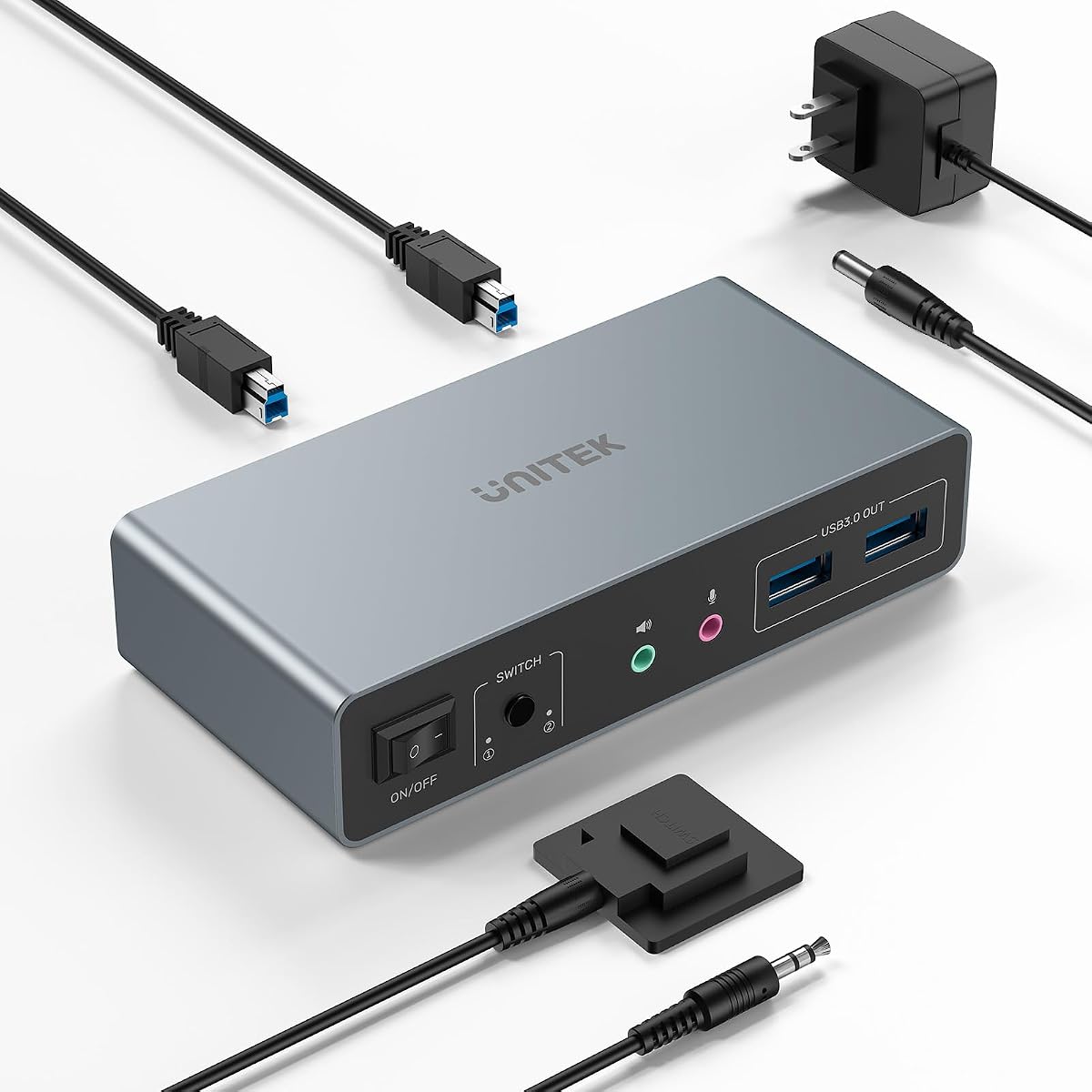
The Unitek KVM switch supports both HDMI and Displayport inputs offering flexibility for mixed device setups. It handles dual monitors and multiple USB peripherals effectively for desktop users.
We may earn a commission when you buy through this link, at no additional cost to you.
Features include 4K@60Hz video and USB 3.0 ports for quick data transfers. A wired remote control enhances usability by letting you place the switch out of sight while keeping easy access.
It is limited to desktop hosts and lacks laptop compatibility which restricts its use cases. Mixed USB ports may require adapters but overall performance remains stable and robust for office work.
Ideal for desktop environments needing both HDMI and DP options. Its flexible input support and remote control make it a practical choice for users with varied hardware configurations.
Combines HDMI and DisplayPort inputs to match diverse device outputs.
Includes mic and headset ports for audio functionality per devices.
We may earn a commission when you buy through this link, at no additional cost to you.
This HDMI KVM switch enables three monitors to share between two computers using HDMI connections. It delivers 4K@60Hz visuals and supports extended or duplicate modes for flexible workspace layouts.
We may earn a commission when you buy through this link, at no additional cost to you.
Equipped with four USB 3.0 ports it handles peripheral sharing efficiently. The included power adapter ensures stable operation even with power-hungry USB devices connected simultaneously during use.
Users must connect multiple HDMI cables per PC which increases clutter slightly. Lack of hotkey support means relying on buttons or remote but stability and performance remain consistent for productivity.
Best for setups needing triple HDMI monitors without DisplayPort. Its high resolution and USB performance suit users prioritizing screen real estate and device connectivity over advanced automation.
Supports three HDMI monitors for expanded visual workspace across PCs.
Delivers 4K@60Hz resolution for sharp and detailed screen content.
We may earn a commission when you buy through this link, at no additional cost to you.
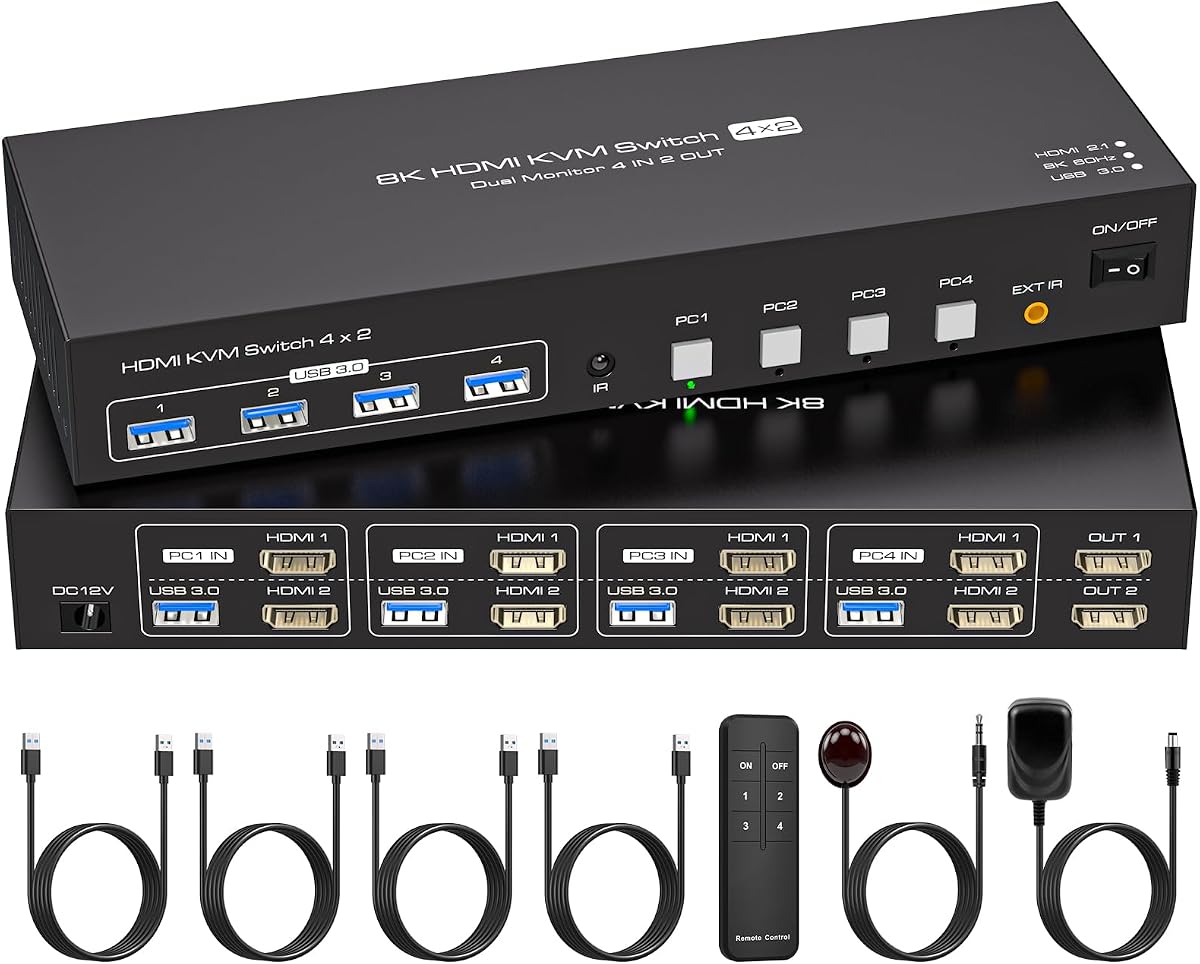
This premium KVM switch supports four computers sharing two monitors ideal for server rooms or complex workstations. Its built-in EDID emulation prevents window rearrangement when switching between systems.
We may earn a commission when you buy through this link, at no additional cost to you.
It handles 8K@60Hz video and includes an infrared remote for convenient control. Four USB 3.0 ports ensure peripherals remain responsive and fast across all connected computers during daily operations.
Each PC needs two HDMI ports which may require adapters on some systems. External power is required but ensures reliability. The EDID feature alone makes it valuable for maintaining stable desktop layouts.
Choose for multi-computer environments needing reliability and high resolution. Its premium features justify the cost for users managing multiple PCs efficiently without losing productivity.
Maintains display settings to avoid screen resets when switching PCs.
Manages four computers on two monitors for centralized control.
We may earn a commission when you buy through this link, at no additional cost to you.
The GL.iNet Comet Pro redefines KVM by enabling remote control over Wi-Fi 6 networks. It provides 4K video passthrough and two-way audio ideal for managing servers remotely without physical access.
We may earn a commission when you buy through this link, at no additional cost to you.
Its touchscreen interface and cloud control allow easy configuration from any device. Built-in Tailscale ensures secure encrypted connections for accessing systems from outside the local network reliably.
Higher cost and dependency on stable networks limit casual use. However for remote IT support or home labs its flexibility and secure features deliver unmatched value compared to local switches.
Best for tech enthusiasts and IT admins needing remote access. Its wireless capabilities and secure cloud integration make it a forward-thinking choice for modern distributed workflows.
Enables KVM switching over Wi-Fi eliminating cable needs entirely.
Uses Tailscale for encrypted secure remote system management.
We may earn a commission when you buy through this link, at no additional cost to you.
This UGREEN model offers reliable dual monitor support using HDMI inputs and four USB ports. It includes a desktop controller keeping your desk clean while maintaining easy switching between PCs.
We may earn a commission when you buy through this link, at no additional cost to you.
Supports 4K@60Hz video and HDR ensuring vibrant images. USB 3.0 with a USB-C port offers versatile peripheral connectivity. Includes power adapters for stable operation under various load conditions.
It lacks EDID emulation which may cause display resets when switching. Power dependency adds cable bulk but performance remains steady. Good value for general users needing dual HDMI setups.
Suitable for home offices with HDMI devices. Its balanced features and controller convenience make it a practical choice for everyday productivity and multimedia use.
Manages two monitors across two computers via HDMI connections.
Four USB ports allow seamless keyboard and mouse sharing.
We may earn a commission when you buy through this link, at no additional cost to you.
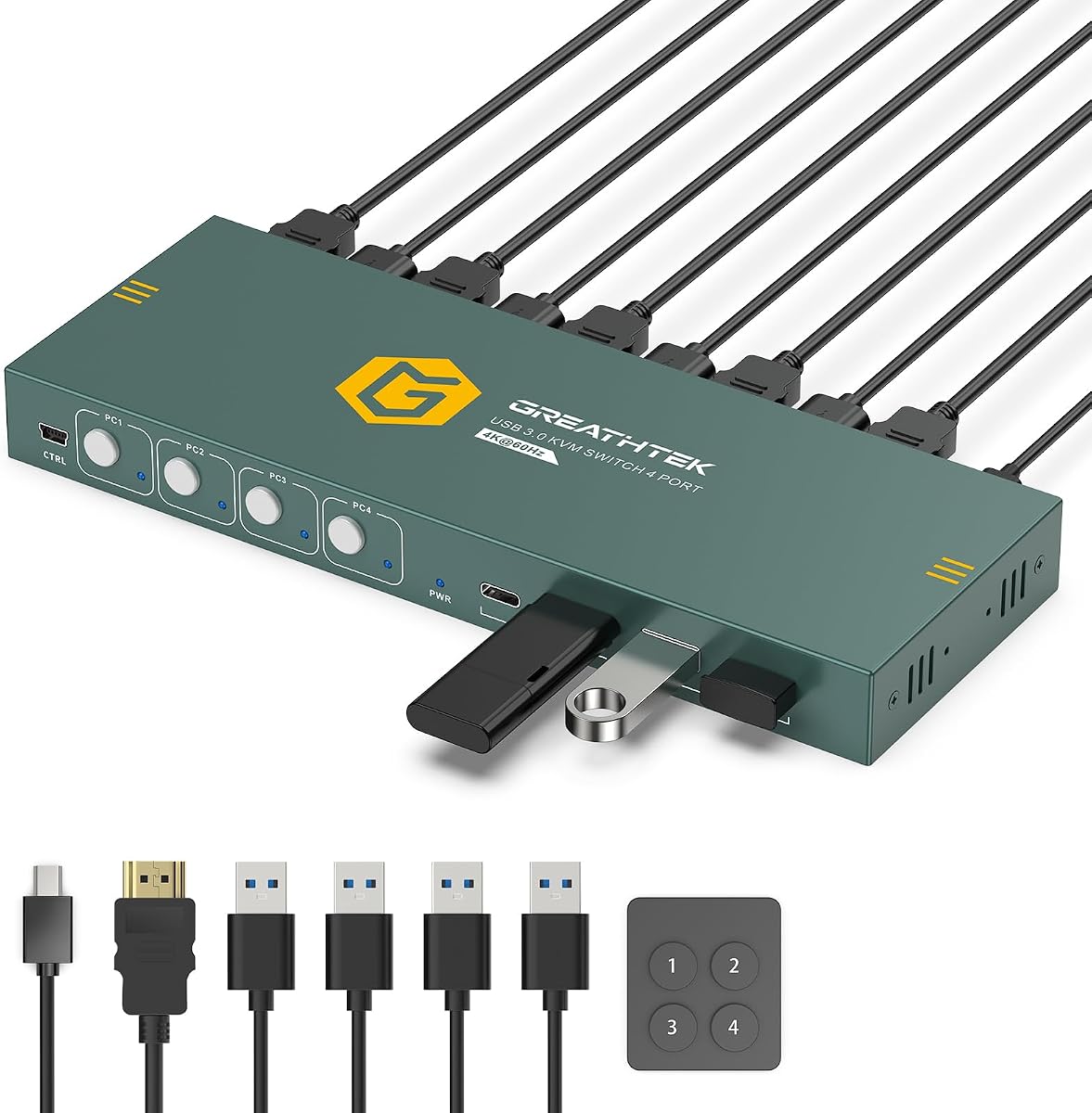
Designed for managing four computers on one monitor this KVM switch simplifies complex setups. Numbered front panel buttons provide quick access to each PC without confusion.
We may earn a commission when you buy through this link, at no additional cost to you.
It supports 4K@60Hz and includes an adaptive EDID to stabilize display settings. The wired remote allows placement flexibility. Includes cables for easy installation and setup in test benches.
Limited to single monitor use restricts workspace expansion. However the clear button mapping and reliability are ideal for IT testing. Power dependency is minor compared to functionality.
Perfect for IT workstations needing four PC access on one screen. Its straightforward interface and solid performance make it a strong choice for focused computing tasks.
Supports four separate computers for comprehensive workspace management.
Numbered buttons simplify switching between multiple connected PCs.
We may earn a commission when you buy through this link, at no additional cost to you.
This compact KVM switch offers an affordable solution for sharing one monitor between two computers. It requires no external power and includes a wired controller for convenient desktop access.
We may earn a commission when you buy through this link, at no additional cost to you.
Supports 4K@60Hz video and USB 2.0 for keyboards mice. Its lightweight design fits small desks. Plug-and-play setup makes it easy to use without technical knowledge.
USB 2.0 limits data transfer speeds compared to modern standards. Mac support is limited. However for basic switching needs the low cost and simplicity provide excellent value for casual users.
Ideal for budget-conscious users needing basic switching. Its simplicity and price make it a reliable option for straightforward dual-PC home office setups.
Operates solely via HDMI without extra power cables or adapters.
Low cost design makes it accessible for simple switching needs.
We may earn a commission when you buy through this link, at no additional cost to you.
Selecting the right KVM switch depends on your specific setup needs including monitor count, resolution, and peripheral requirements.
Decide how many monitors you need to share. Some switches support single or dual setups while others handle triple screens. Ensure your computers match output capabilities.
Match your switch monitor count to your PC output capacity.
Check resolution support like 4K or 8K and video interfaces like HDMI or DisplayPort. Higher refresh rates are vital for gaming while standard resolutions suit office work.
Choose a switch that meets your visual performance needs.
Count how many peripherals you share. USB 3.0 ports offer faster transfer speeds than USB 2.0. Mixed ports including USB-C may be needed for modern devices.
Ensure enough USB ports for all your peripherals.
Options include physical buttons, wired remotes, or infrared remotes. Hotkeys offer automation but not all models support them. Select based on your desk layout.
Pick a switching method that suits your workspace.
Some switches draw power from USB while others need external adapters. External power ensures stability for high-wattage USB devices. Consider power needs before buying.
Verify if external power is needed for your devices.
Verify OS compatibility with Windows, Mac, or Linux. Some switches work better with desktop hosts while others support laptops. Check device specs to avoid issues.
Ensure compatibility with your operating system.
EDID emulation helps maintain monitor settings when switching PCs. Without it, your screen layout may reset. Consider this feature for stable multi-monitor use.
Look for EDID emulation for consistent layouts.
Some packages include HDMI or USB cables while others do not. Factor in cable costs when budgeting. Ensure cables match required lengths and standards.
Check if cables are included in the package.
Connect each computer's video and USB outputs to the switch inputs then attach your monitor and peripherals to the switch outputs. Power the unit if needed and test switching.
Keep the switch in a well-ventilated area to prevent overheating. Avoid bending HDMI or DisplayPort cables excessively to maintain signal integrity over time.
Update firmware if available and use high-quality cables. Clean dust from ports regularly and avoid frequent unplugging to extend device lifespan.
Many modern KVM switches support 4K@60Hz or higher resolutions. Verify the product specs to ensure your desired refresh rate and resolution are supported by the unit.
HDMI KVM switches connect via HDMI cables and suit most displays. DisplayPort KVM switches offer higher bandwidth for advanced multi-monitor or high refresh rate setups.
Some KVM switches support macOS while others may have compatibility issues. Check product descriptions for Mac OS support before purchasing to avoid connectivity problems.
Many KVM switches support laptops provided they have compatible HDMI or DisplayPort outputs. Ensure your laptop can drive multiple monitors if using a multi-screen switch.
It depends on the model. Basic units may run on USB power while others need adapters. External power ensures stable performance for multiple USB peripherals.
Yes KVM switches are designed to let you switch between computers without unplugging cables. Use buttons remotes or hotkeys depending on the model to toggle easily.
Our top picks include the UGREEN 8K model for high resolution triple-monitor users, the Hearvo switch for simple single-monitor setups, and the 4-Port HDMI switch for multi-computer control.
Prioritize resolution support and monitor count matching your needs. USB port types and switching convenience also play vital roles in daily productivity and workspace organization.
Prices and availability change regularly so review current listings for the latest deals. Ensure compatibility with your devices before purchasing to guarantee smooth operation.