
VENTION 6-in-2 USB C Hub
4.3Editor score
Detachable magnetic USB-C connector
Supports 8K video output
Affordable multiport solution
This guide compares the top 10 docking stations for MacBook Neo including connectivity options charging speeds and display support to help you choose the right
Finding the right docking station for your MacBook Neo can transform your workspace into a productive powerhouse. With limited ports on modern laptops, a reliable hub is essential for connecting monitors peripherals and chargers efficiently.
We have carefully evaluated ten top-rated models based on port variety display capabilities charging power and overall build quality. Our comparison focuses on real-world performance and compatibility to ensure you get the most value for your investment.
Each pick below highlights specific strengths and potential trade-offs to help you match the dock to your workflow. Keep in mind that product availability and specifications may change so always verify details before purchasing.
4.3Editor score

4.5Editor score
4.1Editor score
The following table provides a side-by-side overview of the top ten docking stations evaluated for MacBook Neo users. Each entry highlights key specifications to help you quickly compare connectivity options display support and charging capabilities.





The Anker Laptop Docking Station Dual Monitor stands out as a highly capable hub for MacBook Neo users seeking reliable connectivity. With a 4.5-star rating from thousands of users it offers an impressive range of ports in a compact form factor.
We may earn a commission when you buy through this link, at no additional cost to you.
This 8-in-1 hub features two HDMI ports that allow you to connect dual external displays at 4K resolution. It includes a USB-C PD-IN charging port that supports pass-through charging up to 85W ensuring your laptop stays powered while you work. Additional ports include two USB-A data ports an Ethernet port and a microSD/SD card reader making it a versatile tool for multitasking.
While the dual HDMI capability is excellent note that macOS users will experience mirrored content on both external monitors rather than extended displays. This is a limitation of the operating system rather than the dock itself. The hub also lacks some of the higher-speed USB-C data ports found on pricier models.
For professionals who need to connect multiple peripherals without breaking the bank this Anker hub delivers outstanding value. Its plug-and-play functionality and reliable performance make it a top recommendation for everyday work setups.
The two HDMI ports enable 4K@30Hz output for dual monitors which is ideal for productivity tasks like spreadsheet analysis or reference monitoring.
With 85W pass-through charging support you can keep your MacBook Neo charged while using all connected peripherals without needing a separate power adapter.
We may earn a commission when you buy through this link, at no additional cost to you.
The iVANKY 12-in-2 FusionDock 1 offers an extensive array of connectivity options designed to handle demanding workloads. It supports dual 4K displays at 120Hz on compatible Mac models making it suitable for creative professionals who need high refresh rates.
We may earn a commission when you buy through this link, at no additional cost to you.
This dock features four USB 3.0 ports enabling data transfer speeds up to 5Gbps. The integrated SD/TF card slot supports read speeds up to 104Mb/s which is beneficial for photographers transferring images. It also includes a Gigabit Ethernet port for stable wired internet connections and a 150W power adapter that provides up to 96W charging for your laptop.
Users with base M1 M2 or M3 MacBooks should note that these chips only support a single external display. The dual display feature requires M4 M5 base or Pro/Max chips. The larger size might require more desk space compared to compact hubs.
If you need a comprehensive connection station with robust power and data capabilities the iVANKY FusionDock 1 is a strong contender. It balances performance and features effectively for those who require extensive peripheral support.
Four USB 3.0 ports allow simultaneous connection of multiple external drives or peripherals with consistent 5Gbps transfer speeds.
The 150W adapter enables up to 96W charging to your laptop keeping it powered during heavy multitasking sessions without external outlets.
We may earn a commission when you buy through this link, at no additional cost to you.
The Anker Nano Laptop Docking Station provides a unique hybrid solution with a detachable 6-in-1 hub included in the package. This design allows you to have a full desktop docking experience and a portable travel hub in one purchase.
We may earn a commission when you buy through this link, at no additional cost to you.
It supports triple display setups with two HDMI ports and one DisplayPort enabling configurations up to 4K@60Hz on a single screen or dual 2K@60Hz. The dock includes a high-speed 10Gbps USB-C data port for fast file transfers and supports 100W laptop charging via a 140W power adapter. Additional ports include three USB-A ports a Gigabit Ethernet port and SD/TF card slots.
The detachable hub adds significant convenience for on-the-go work though it requires the laptop connection to activate all ports. macOS users will see mirrored content on multiple external displays. The need for an external power adapter adds slight bulk to the setup.
For users who travel frequently but also need a powerful desktop setup this hybrid dock is an excellent choice. It eliminates the need to buy separate devices for home and travel use.
The detachable 6-in-1 hub can be used separately for travel making it a cost-effective solution for dual use cases.
Triple display support via HDMI and DisplayPort helps maximize screen real estate for data analysts and content creators.
We may earn a commission when you buy through this link, at no additional cost to you.
This compact Anker USB-C Hub delivers high-performance features in a small form factor. It supports up to 5K display resolution and provides 100W power delivery making it suitable for high-end laptop configurations.
We may earn a commission when you buy through this link, at no additional cost to you.
The hub includes a multi-function USB-C port alongside two USB-A ports HDMI and dual card slots. Its design avoids obstructing the MagSafe port which is crucial for many MacBook users. The 4K@60Hz HDMI port supports streaming and presentations effectively.
Note that this hub is not compatible with MacBook Neo models. While it offers excellent performance and port variety users with MacBook Neo should look for alternative models designed specifically for their device.
For other MacBook users this hub provides an efficient way to expand connectivity without sacrificing desk space. Its compact size makes it ideal for users who move between locations frequently.
The hub is engineered to avoid blocking the MagSafe port allowing uninterrupted charging while using connected peripherals.
Support for 5K@60Hz and 4K@60Hz outputs ensures compatibility with high-resolution monitors for crisp visuals.
We may earn a commission when you buy through this link, at no additional cost to you.
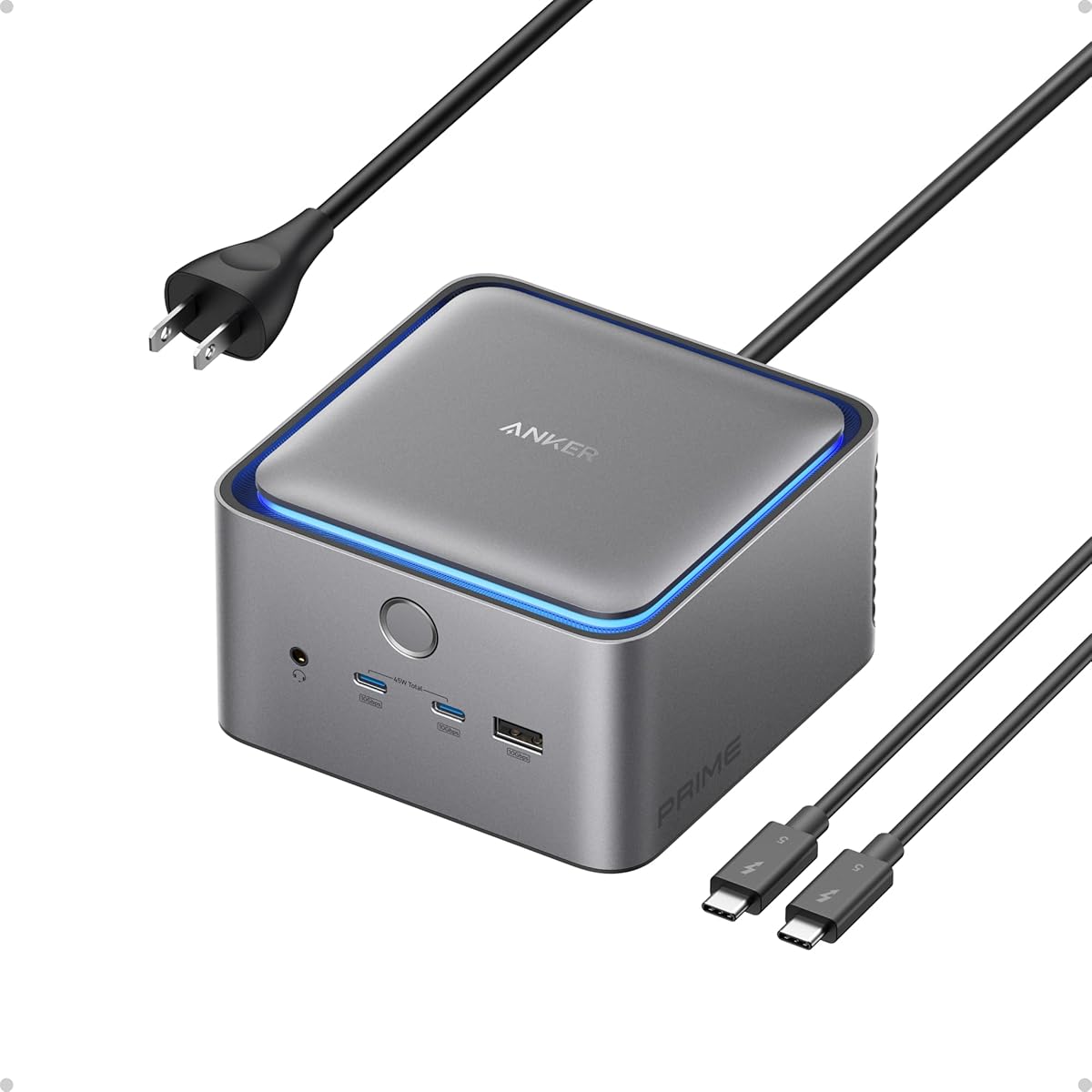
The Anker Prime Docking Station offers a robust 14-in-1 solution with exceptional power capabilities. It can deliver up to 160W total output allowing you to charge your laptop and multiple accessories simultaneously.
We may earn a commission when you buy through this link, at no additional cost to you.
With three USB-C ports capable of 100W each and one USB-A port this dock can manage power distribution efficiently. Data transfer speeds reach 10Gbps on select ports ensuring quick file movements. Dual HDMI ports support up to 2K@60Hz or 1080p@60Hz displays depending on the laptop connection.
Users should be aware that the dock does not support 5120×1440 monitors. On macOS displays will mirror rather than extend across monitors. The high power output is best suited for power users with multiple external devices.
If you need a dock that can handle significant power distribution and fast data transfers this model is a top choice. It is well-suited for creative professionals and developers with complex setups.
Three USB-C ports allow up to 100W charging each making it easy to power laptops and external drives simultaneously.
10Gbps transfer speeds on key ports ensure that large files move quickly between your laptop and external storage.
We may earn a commission when you buy through this link, at no additional cost to you.
The VENTION 6-in-2 USB C Hub is an affordable option designed specifically for MacBook Air and Neo users. Its magnetic detachable connector provides convenience and reduces wear on your laptop ports.
We may earn a commission when you buy through this link, at no additional cost to you.
This hub supports Thunderbolt transmission up to 80Gbps enabling 8K video output for high-resolution displays. It includes two USB-C ports one with pass-through charging up to 140W. The aluminum alloy shell ensures durability and effective heat dissipation.
Users should note that if your MacBook has a bottom case the connector may not fit properly. The hub is best suited for standard configurations. Port variety is limited compared to larger docks but it covers essential needs efficiently.
For budget-conscious buyers seeking high-resolution display support and fast charging this hub offers exceptional value. Its magnetic design is a standout feature for frequent travelers.
Support for 8K@240Hz makes this hub ideal for users with ultra high-definition monitors and gaming needs.
The detachable magnetic USB-C connector simplifies connection and reduces physical strain on your laptop ports.
We may earn a commission when you buy through this link, at no additional cost to you.
The Anker Prime TB5 Docking Station represents the cutting edge of docking technology with Thunderbolt 5 connectivity. It offers unparalleled data transfer speeds and display capabilities for high-performance laptops.
We may earn a commission when you buy through this link, at no additional cost to you.
This dock features two Thunderbolt 5 downstream ports and a 140W upstream charging port. It supports up to 8K@60Hz on a single display and dual 8K@60Hz on Windows laptops. An active cooling system prevents overheating during heavy loads ensuring stable performance.
The 150GB file transfer in 25 seconds highlights its speed. However this dock is best suited for users with Thunderbolt 5 compatible laptops. The premium price reflects its advanced capabilities.
For professionals requiring maximum bandwidth and resolution this dock is the ultimate choice. It is an investment in future-proofing your workstation setup.
Thunderbolt 5 technology enables extremely fast file transfers making it ideal for large video and data workloads.
An active cooling system ensures the dock remains stable and cool even during extended high-performance sessions.
We may earn a commission when you buy through this link, at no additional cost to you.
The TobenONE MacBook Pro/Air Docking Station Stand combines a vertical laptop stand with a full docking station. This design saves desk space while providing extensive connectivity for your peripherals.
We may earn a commission when you buy through this link, at no additional cost to you.
It supports dual 4K@60Hz via HDMI allowing for high-resolution external displays. The stand holds your MacBook upright improving ergonomics. The hub includes multiple USB-A USB-C Ethernet and audio ports along with SD card readers. A 100W charger is included for reliable power delivery.
Base M1 M2 or M3 MacBooks will only support single-screen expansion. The vertical stand adds bulk which may not fit smaller desks. However the space-saving vertical layout is excellent for organized workstations.
For users who value desk organization and ergonomic benefits this dock is an ideal solution. It simplifies cable management and provides ample ports for daily tasks.
The vertical stand design lifts your MacBook off the desk freeing up significant surface area for other work tools.
Dual 4K@60Hz HDMI support allows for precise multitasking on high-resolution screens for design work.
We may earn a commission when you buy through this link, at no additional cost to you.
The TobenONE 18-in-2 Docking Station offers the highest port count on this list making it perfect for setups with many peripherals. It includes seven USB-C/A ports multiple display outputs and additional connectivity options.
We may earn a commission when you buy through this link, at no additional cost to you.
It supports dual 4K@60Hz on compatible Mac models and includes a 150W adapter delivering up to 100W to your laptop. Two front USB-C ports provide 30W quick charging for phones. The 2.5Gbps Ethernet ensures fast and stable internet connections.
Users with M1 M2 or M3 MacBooks are limited to single-monitor extension. The large number of ports can lead to cable clutter without proper management. However it remains highly versatile for power users.
If you need a single solution that connects almost everything simultaneously this dock is unmatched. It reduces the need for multiple adapters and streamlines your workflow.
Two front USB-C ports provide quick 30W charging for phones or tablets while you work.
The 2.5Gbps Ethernet port delivers faster internet speeds than standard Gigabit connections for better productivity.
We may earn a commission when you buy through this link, at no additional cost to you.
The Plugable Thunderbolt 4 Dock is designed specifically for Mac users seeking reliable performance and long-term support. It offers 13 ports with dual 4K display support and 100W charging in a sleek aluminum chassis.
We may earn a commission when you buy through this link, at no additional cost to you.
This dock supports Thunderbolt 4 speeds up to 40Gbps and requires no drivers for operation. It works seamlessly with M4 and M5 MacBooks as well as M1 to M3 models with Pro or Max chips. The 100W host charging keeps your laptop powered throughout the day.
Note that base M1 M2 MacBooks only support a single external display. Base M3 MacBooks support dual displays only in clamshell mode. The lifetime support from the North American team adds significant value for business users.
For users who prioritize reliability and customer support this dock is an excellent choice. It is well-suited for professional environments requiring consistent performance.
Lifetime technical support from Plugable ensures help is available whenever connectivity issues arise.
No drivers are needed for this dock making setup simple and ensuring compatibility across Mac operating systems.
We may earn a commission when you buy through this link, at no additional cost to you.
Selecting the right docking station involves evaluating several key factors to ensure compatibility and performance with your specific MacBook Neo setup.
Consider how many monitors you need to connect and at what resolution. Many hubs support dual 4K displays but some models like the VENTION hub support higher refresh rates like 240Hz. Also note that macOS often limits M1/M2/M3 chips to a single external display regardless of the dock.
Check the HDMI and DisplayPort versions to ensure they meet your resolution requirements for video editing or detailed work.
Ensure the dock provides sufficient pass-through charging for your MacBook Neo. Most modern MacBooks require at least 60W to 100W of power. Docks with 140W or 160W adapters can charge both the laptop and external devices simultaneously.
Look for docks that include dedicated power adapters rather than relying solely on laptop power to avoid performance drops.
Evaluate the types of ports you need such as USB-A for legacy devices or USB-C for high-speed transfers. Look for 10Gbps or higher data speeds if you frequently transfer large files to external drives.
Ethernet ports are essential for stable wired internet connections especially if your Wi-Fi signal is weak.
Aluminum alloy housings are preferred for better heat dissipation during heavy use. Docks with active cooling systems ensure stability during long sessions.
Check for durable connectors like magnetic USB-C which reduce wear on your laptop ports over time.
Verify that the dock supports your specific MacBook model chip and operating system. Some docks may require Thunderbolt 5 which is only available on newer Pro and Max chips.
Ensure macOS limitations are accounted for especially if you plan to use multiple external displays.
Compact hubs are ideal for travel but larger docking stations with stands save desk space by elevating your laptop. Measure your workspace to ensure the dock fits comfortably.
Consider docks that combine stands with hubs to organize cables and improve ergonomics.
SD and microSD card slots are useful for photographers and videographers who need to transfer media directly. Ensure the card reader supports your specific card types and speeds.
Audio jacks allow direct connection of headphones or microphones without needing extra dongles.
A longer warranty period such as 18 months to lifetime support provides peace of mind. Brands like Plugable and Anker offer strong customer service.
Check if the manufacturer offers easy replacement policies if the dock fails under normal use.
Connect the docking station to your MacBook Neo using a high-quality USB-C cable. Ensure the power adapter is plugged in for full functionality and avoid relying on laptop power for high-demand tasks.
Organize your cables neatly to prevent tangling and reduce strain on ports. If your dock includes a vertical stand use it to improve airflow and free up desk space.
Periodically dust the dock and ports with a soft dry cloth. Avoid using liquid cleaners or compressed air directly into the connectors to prevent internal damage.
Yes you can use docking stations that support dual HDMI or DisplayPort connections. However note that macOS often limits base M1/M2/M3 chips to a single external display unless using specific features like clamshell mode.
Most modern docking stations support pass-through charging allowing you to use a single cable for both power and data. However ensure the dock provides sufficient wattage like 100W to fully charge your MacBook Neo during use.
Thunderbolt docks offer higher data transfer speeds typically up to 40Gbps compared to standard USB-C which may range from 5Gbps to 10Gbps. Thunderbolt also supports daisy chaining more high-resolution displays simultaneously.
Most docks are designed to be plug-and-play with macOS requiring no additional driver installation. However check specific compatibility notes for older operating systems or specialized features.
Check the product specifications for HDMI or DisplayPort versions like HDMI 2.0 or DP 1.4 which support 4K at 60Hz. Lower versions may only support 4K at 30Hz or 1080p resolutions.
Yes most docking stations include multiple USB-A or USB-C ports allowing you to connect several external drives simultaneously. Ensure the dock provides enough power for all connected devices without throttling performance.
Flickering can result from insufficient bandwidth or power. Try reducing the resolution or refresh rate and ensure the dock is powered via a dedicated adapter rather than laptop power.
A well-made docking station can last several years with regular use. Factors like heat management cable quality and usage patterns impact longevity so choose models with solid build quality and good reviews.
The ten options highlighted in this guide cover a wide range of needs from budget-friendly hubs to premium Thunderbolt 5 solutions. Each offers unique strengths in connectivity power delivery and display support.
Prioritize your specific requirements such as the number of monitors power output and port variety to find the right fit. Remember to verify compatibility with your exact MacBook Neo model before purchasing.
Product availability and pricing may change so review current offers and specs before making a final decision to ensure you get the best value for your setup.